FIRST-TIME SETUP

Setting Up Logan Vision?
Start Here.

Follow the steps below to choose your device, install the correct app, enter your Logan Vision login details, and start streaming.

✓ New to Logan Vision? Start with Step 1 below.

Already set up but having trouble logging in? Visit Login & App Access →
1
Start With Your Device

Choose Your Device

Select the device you want to set up first. Each device uses a specific app and installation method, so choose the correct device below before continuing.
Setting up more than one device? Start with the device you plan to use most. Once it is working, come back and set up your other devices.
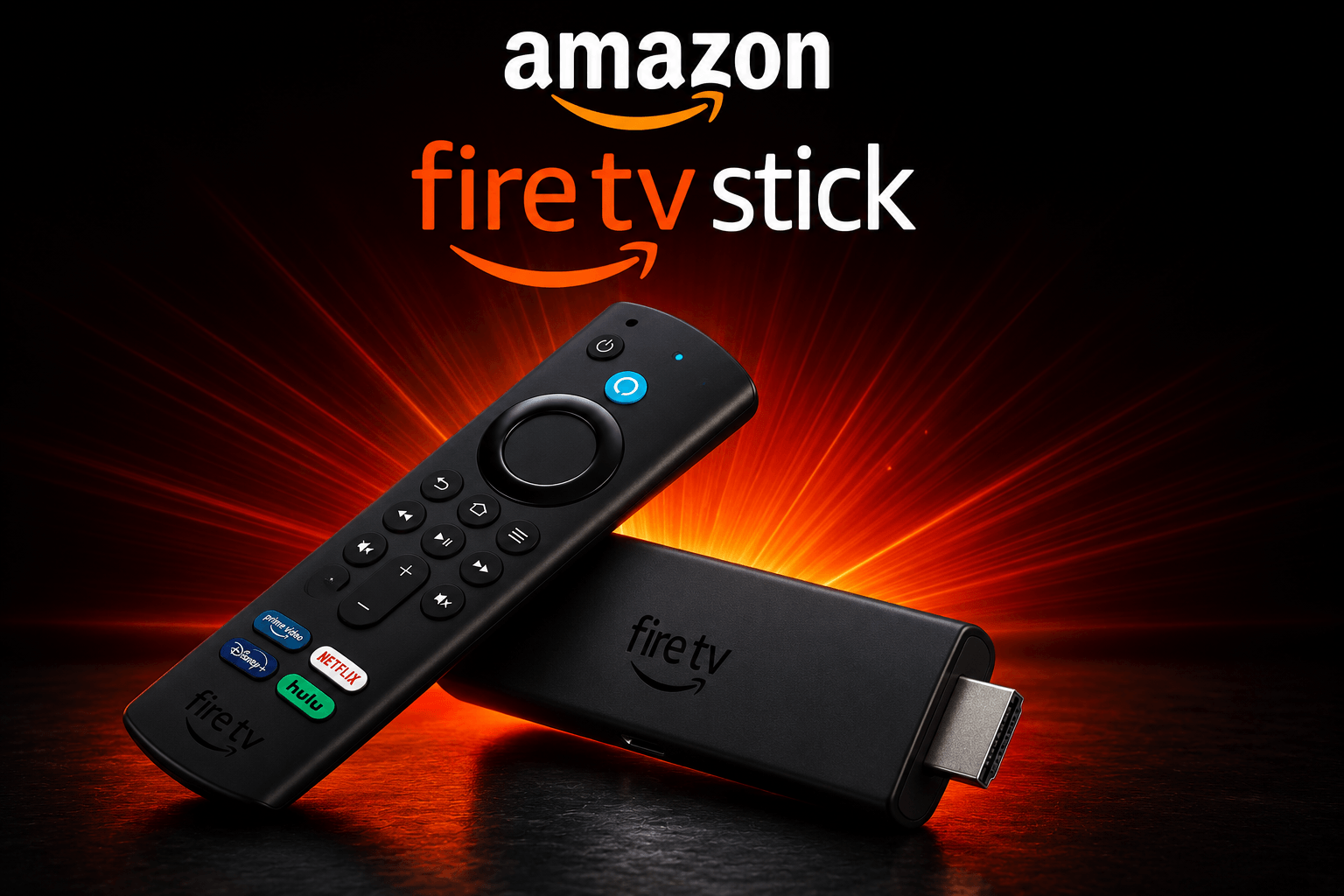
Fire TV Stick

Fire TV Stick

Get Downloader From Amazon Appstore
Install Generic Smarters
Downloader Code 3883750

Install Downloader first, enter the Logan Vision code, and use it to install Generic Smarters.

View Fire TV Setup →
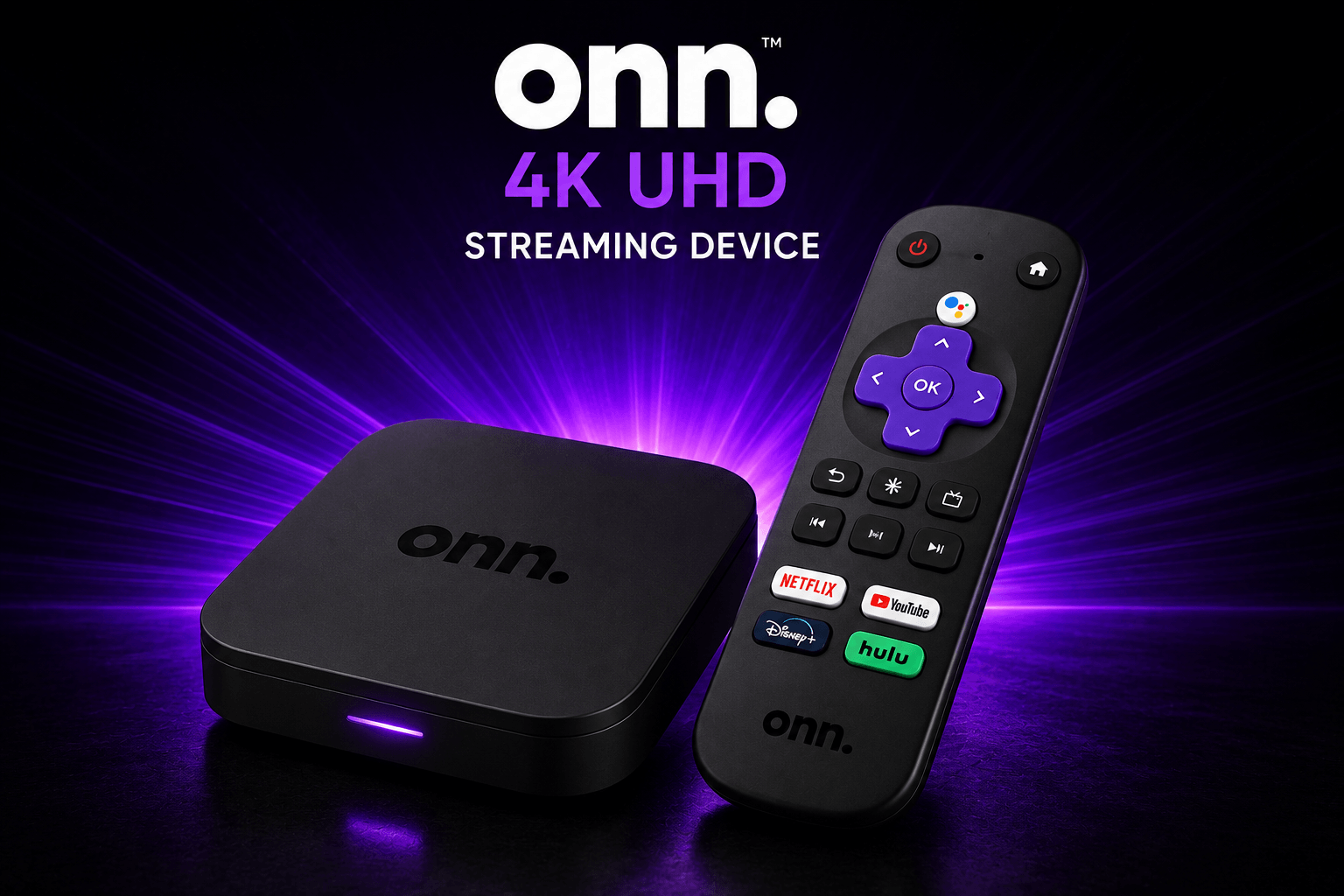
ONN and Google TV streaming device

ONN / Google TV

Get Downloader From Google Play Store
Install Generic Smarters
Downloader Code 3883750

Install Downloader first, enter the Logan Vision code, and use it to install Generic Smarters.

View ONN Setup →
iPhone and iPad

iPhone / iPad

Get App From Apple App Store
App Name Smarters Player Lite
Look For The Best Media Player
Developer WHMCS SMARTERS

Make sure you choose the correct Smarters Player Lite listing before entering your Logan Vision details.

View iPhone / iPad Setup →
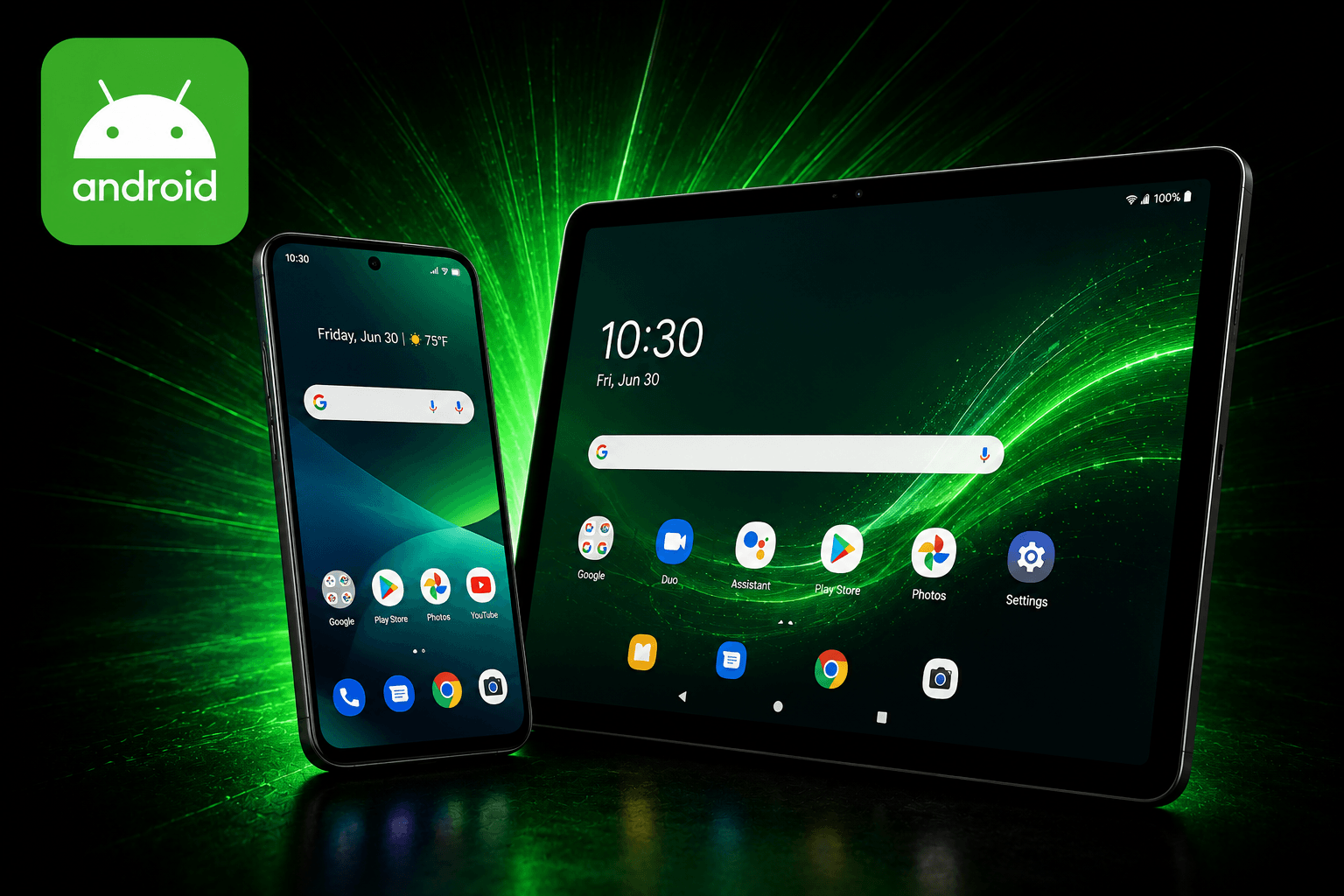
Android phone and tablet

Android Phone / Tablet

Get App From Google Play Store
App Name XCIPTV PLAYER
Developer OTTRUN

Install XCIPTV PLAYER from Google Play, then follow the Logan Vision Android setup guide.

View Android Setup →
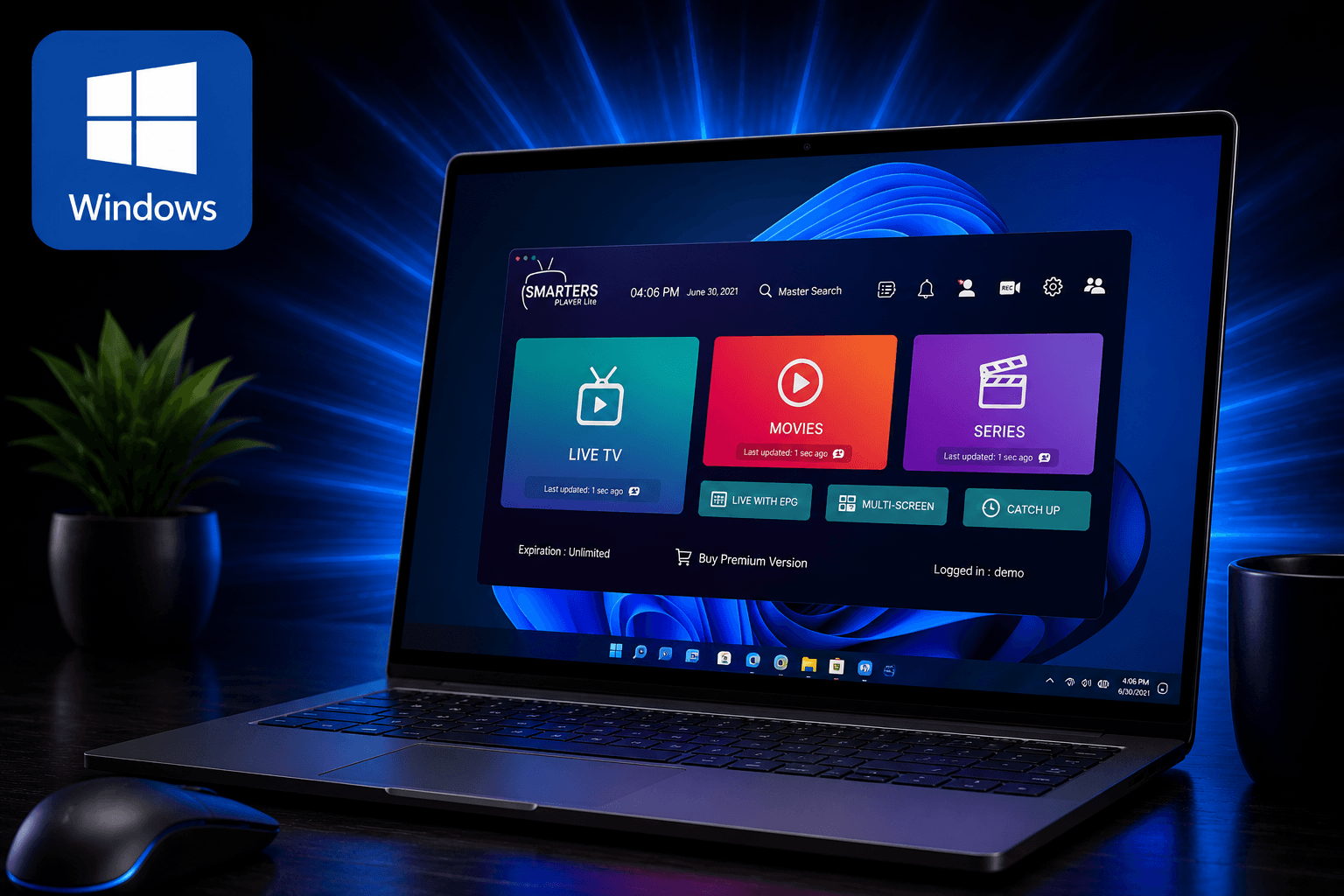
Windows computer

Windows Computer

Get App From Microsoft Store
App Name IPTV Smarters Pro – Smart IPTV+
Developer ssProx

Make sure you install the ssProx version, then follow the Logan Vision Windows setup guide.

View Windows Setup →
Next: After choosing the correct device and app, continue to Step 2 — Get & Install the Correct App.
2
Install the Right App

Get & Install the Correct App

Use the app listed for your device below. Installing the correct app now helps prevent login errors and setup problems later.

Important: App names can look very similar in the different app stores. Use the exact app name and developer shown below whenever one is listed.

Generic Smarters

Fire TV Stick • ONN / Google TV
First Install Downloader
Then Install Generic Smarters
Downloader Code 3883750
  • Open Downloader on your Fire TV or ONN device.
  • Enter code 3883750.
  • Download and install Generic Smarters.
  • Open the app after installation is complete.
View Generic Smarters Setup →

Smarters Player Lite

iPhone • iPad
Get It From Apple App Store
App Name Smarters Player Lite
Look For The Best Media Player
Developer WHMCS SMARTERS
  • Open the Apple App Store.
  • Search for Smarters Player Lite.
  • Confirm the correct listing before installing.
  • Open the app when installation finishes.
View iPhone / iPad Setup →

XCIPTV PLAYER

Android Phone • Android Tablet
Get It From Google Play Store
App Name XCIPTV PLAYER
Developer OTTRUN
  • Open the Google Play Store.
  • Search for XCIPTV PLAYER.
  • Confirm the OTTRUN listing.
  • Install and open the app.
View Android Setup →

IPTV Smarters Pro – Smart IPTV+

Windows Computer
Get It From Microsoft Store
App Name IPTV Smarters Pro – Smart IPTV+
Developer ssProx
  • Open the Microsoft Store.
  • Search for IPTV Smarters Pro – Smart IPTV+.
  • Confirm the developer is ssProx.
  • Install and open the app.
View Windows Setup →
App Installed? Stop Here Before You Log In.

The next step is making sure you have your correct Logan Vision username and password before entering anything into the app.

Next: Continue to Step 3 — Get Your Logan Vision Login Details.
5
Check Your Connection

Check Whether You Need a VPN

Some internet and mobile connections may need a VPN for Logan Vision to stream correctly. Use the quick check below before testing your service.

VPN Usually Needed

Connect Your VPN Before Streaming

If you use one of these connections, connect your VPN before opening your streaming app.

  • AT&T
  • T-Mobile
  • Starlink
  • Verizon Fios
  • Mobile cellular data
Correct order:
Close your streaming app → connect your VPN → wait until it shows Connected → reopen your streaming app.
VPN Usually Not Needed

Try Your Service Without a VPN First

If you use another home internet provider, you generally do not need to install or purchase a VPN just to start using Logan Vision.

What to do:
Leave the VPN off for now and continue to Step 6. If streaming does not work correctly, use the VPN Help page to determine whether your connection is the problem.

Not Sure or Already Having a VPN Problem?

Use the Logan Vision VPN Help guide to find out whether you need a VPN, test your connection, reconnect correctly, or troubleshoot a VPN that says Connected but still will not stream.

Open VPN Help →
Next: Once your connection is ready, continue to Step 6 — Test Your Setup.
6
Make Sure Everything Works

Test Your Setup

Your app is installed, your login works, and your connection is ready. Now test a few things to make sure your Logan Vision setup is working correctly.

1

Test Live TV

Open Live TV and try more than one channel. Testing a few channels helps confirm that your setup is working normally.

  • Open Live TV.
  • Try two or three different channels.
  • Make sure video and sound are working.
2

Test a Movie or Series

After Live TV works, open Movies or Series and test one title.

  • Open Movies or Series.
  • Select one title.
  • Confirm that playback starts normally.

Everything Playing? Your Setup Is Complete.

If Live TV and a movie or series both play correctly, your Logan Vision service is ready to use.

Something Not Playing Correctly?

You do not need to start the setup process over. Use the appropriate Logan Vision troubleshooting guide instead.

Setup complete? Continue below for your quick links and Logan Vision support resources.
✓
6 of 6 Complete

Setup Complete.
You’re Ready to Stream.

You did it. Your app is installed, your Logan Vision login is working, your connection is ready, and your playback test is complete. Open your app and enjoy Logan Vision.

Correct app installed Login connected Connection checked Playback tested

Helpful Logan Vision Resources

Keep these links handy whenever you need tutorials, sports information, or service updates.

Video Tutorials

Watch Logan Vision setup videos and quick-fix tutorials for supported devices and common issues.

Watch Setup Videos →

Live Sports Updates

Find today’s Logan Vision sports schedule and available event information in one place.

View Live Sports →

Service Status

Check current Logan Vision service updates, maintenance, and known issues.

Check Service Status →

Still Having Trouble?

Visit the Support & Knowledge Center and choose the issue that best matches what you’re seeing. We’ll direct you to the correct troubleshooting guide.