
iPhone & iPad Setup Guide
Download & Install the Recommended Apple Player
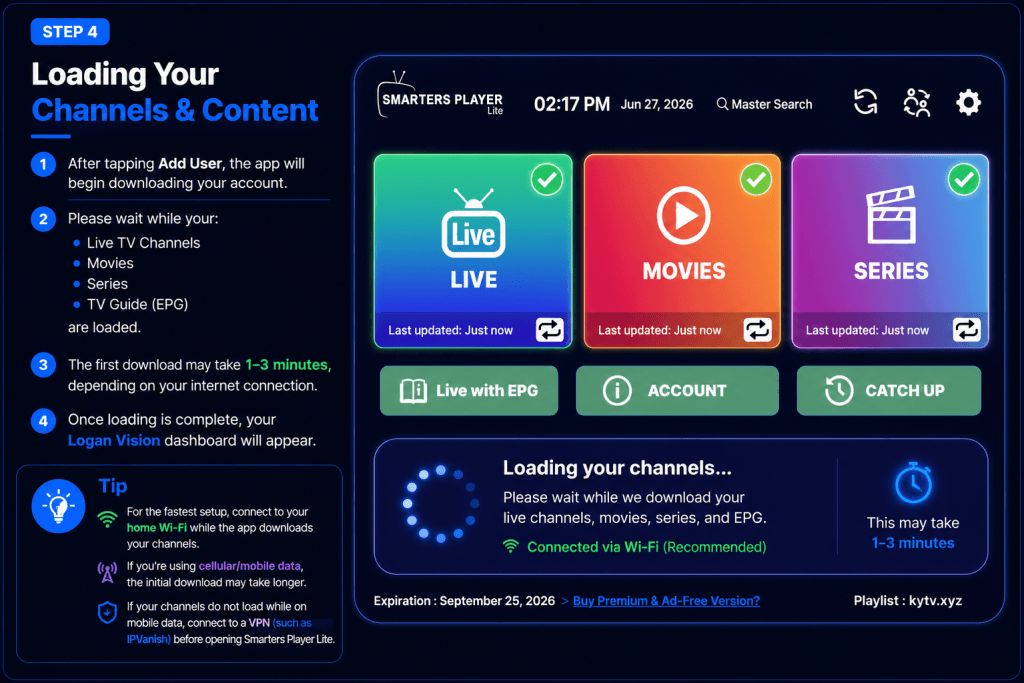
Watch Logan Vision on your iPhone or iPad in just a few minutes. Download our recommended player, sign in with your Logan Vision account, and start streaming live TV, movies, and series.
What You'll Learn
Follow the steps below to download the recommended player, sign in with your Logan Vision account, and start watching on your iPhone or iPad.
- Download Smarters Player Lite from the App Store
- Install the app on your iPhone or iPad
- Sign in with your Logan Vision username and password
- Watch Live TV
- Access Movies & Series
- Refresh the TV Guide (EPG)
iPhone & iPad Setup Guide FAQs
Yes. Logan Vision works on supported iPhone and iPad devices. Simply download the recommended player, sign in with your Logan Vision account, and start streaming live TV, movies, and series.
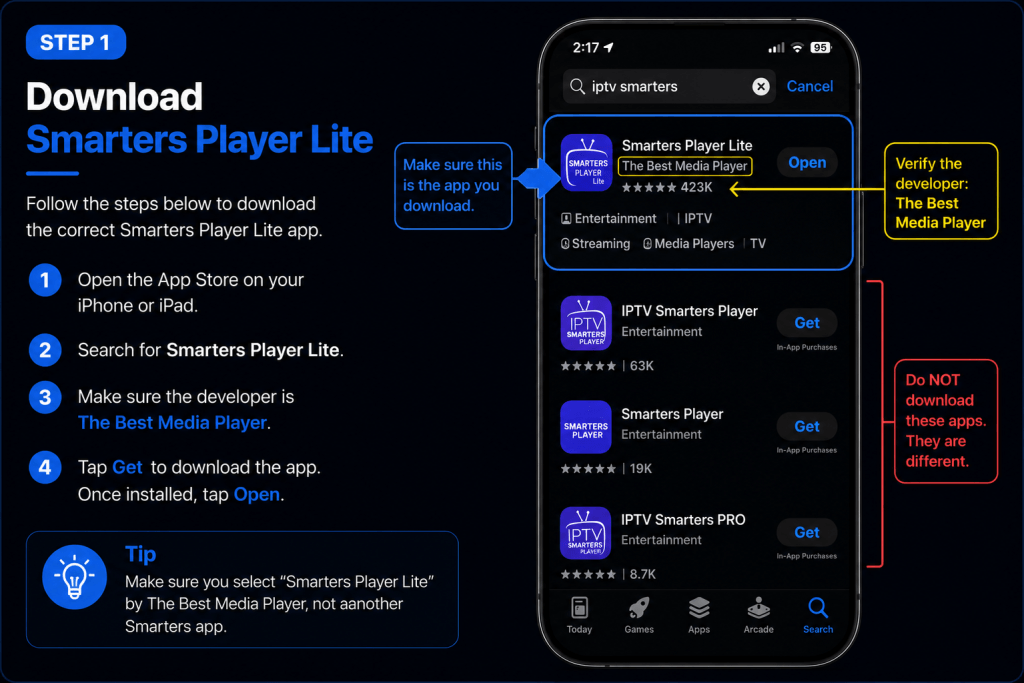
Download Smarters Player Lite developed by The Best Media Player. The Apple App Store contains several apps with similar names, including IPTV Smarters Player and Smarters Player. To avoid installation problems, make sure you select Smarters Player Lite from The Best Media Player, as shown in this guide.
Download Smarters Player Lite directly from the Apple App Store using the Download App button at the top of this page. Before tapping Get, verify that the developer is The Best Media Player. The App Store contains several apps with similar names, so make sure you’re downloading Smarters Player Lite by The Best Media Player, as shown in this guide. App Store.
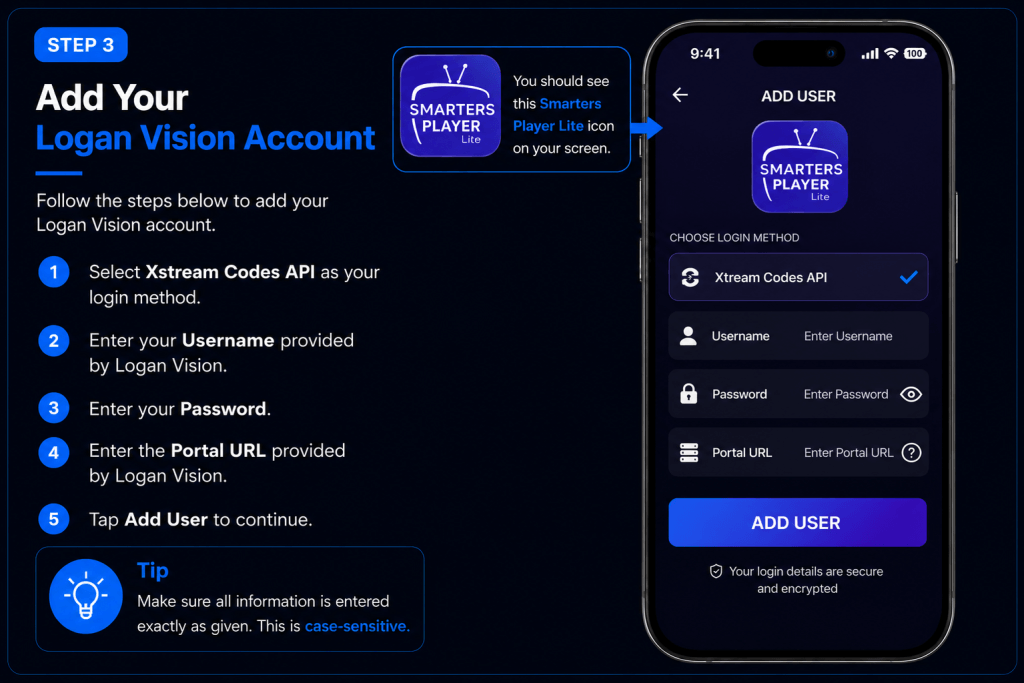
You’ll need the Username, Password, and Server URL included in your Logan Vision activation email. Enter these exactly as provided to connect your account.
Yes. Logan Vision works on both Wi-Fi and mobile data. For the best streaming experience, a strong internet connection is recommended.
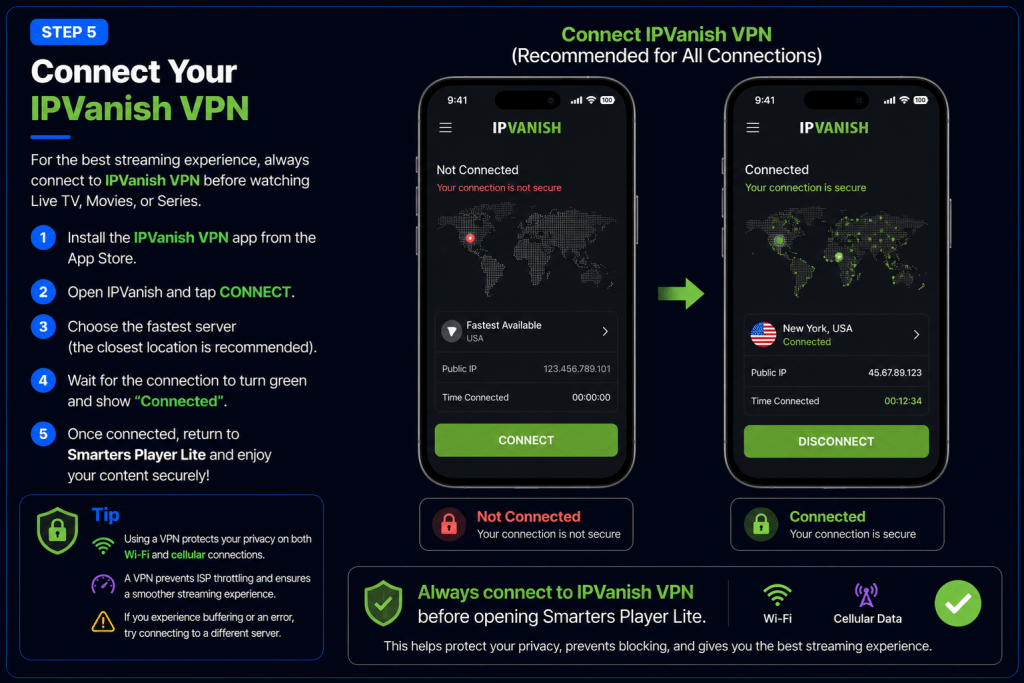
Most home Wi-Fi networks work without one. However, customers using AT&T, T-Mobile, Starlink, Verizon Fios, or mobile cellular data may need a VPN for the best streaming experience. If you experience buffering or connection issues, follow Logan Vision’s VPN recommendations.
First, verify that your Username, Password, and Server URL match the information in your activation email. If you’re still unable to sign in, visit the Logan Vision Support Center or contact Logan Vision Support for assistance.
Yes. Logan Vision supports several compatible IPTV players. We recommend Smarters Player Lite because it provides the easiest setup experience, and the screenshots in this guide are based on that app. Other compatible players may have a different appearance, but the setup process is similar.
If you’re unsure, compare your screen to the Step 1 image on this page before downloading the app.
Yes. Depending on your subscription, you may use Logan Vision on multiple compatible iPhones and iPads. The number of devices you can use at the same time depends on the number of connections included with your subscription.
Visit the Logan Vision Support Center for additional setup guides, troubleshooting articles, and service updates. If you still need assistance, our support team is here to help.
Before downloading, verify that the developer is The Best Media Player. There are several apps in the Apple App Store with similar names, but this guide is specifically designed for Smarters Player Lite by The Best Media Player. Choosing a different app may result in screens that look different from this guide and could make setup more confusing.
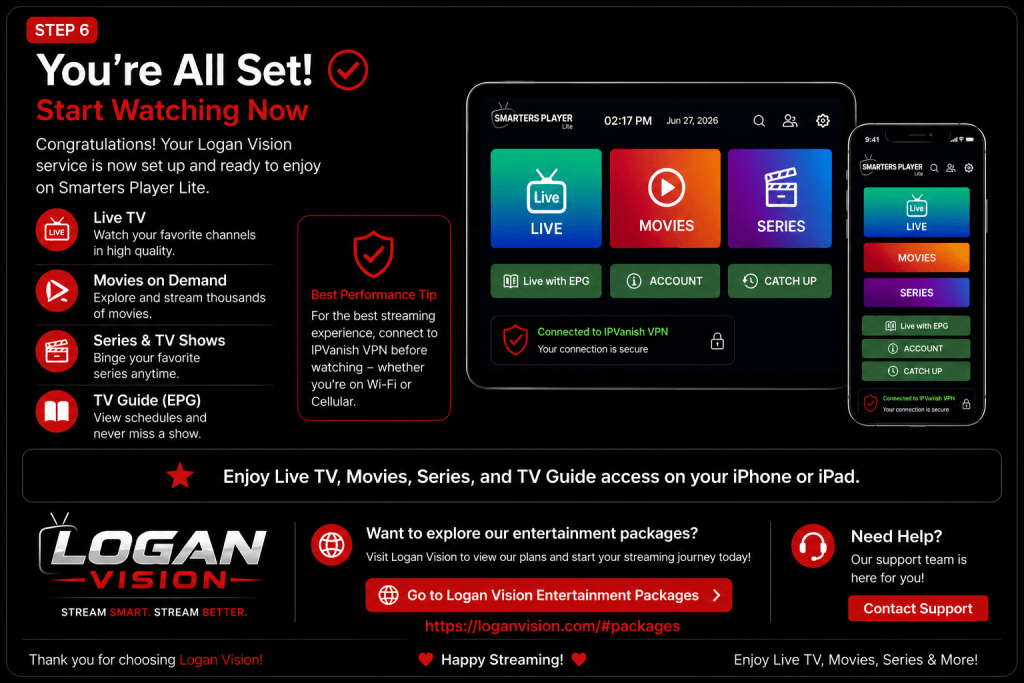
🎉 You're All Set!
Your Logan Vision service is now ready to stream on your iPhone or iPad. Enjoy live TV, movies, and series wherever you go.
For the best streaming experience, we recommend connecting to your IPVanish VPN before watching, whether you’re on Wi-Fi or Cellular.For the best streaming experience, we recommend connecting to your IPVanish VPN before watching, whether you’re on Wi-Fi or Cellular.