PREMIUM STREAMING. MADE SIMPLE.
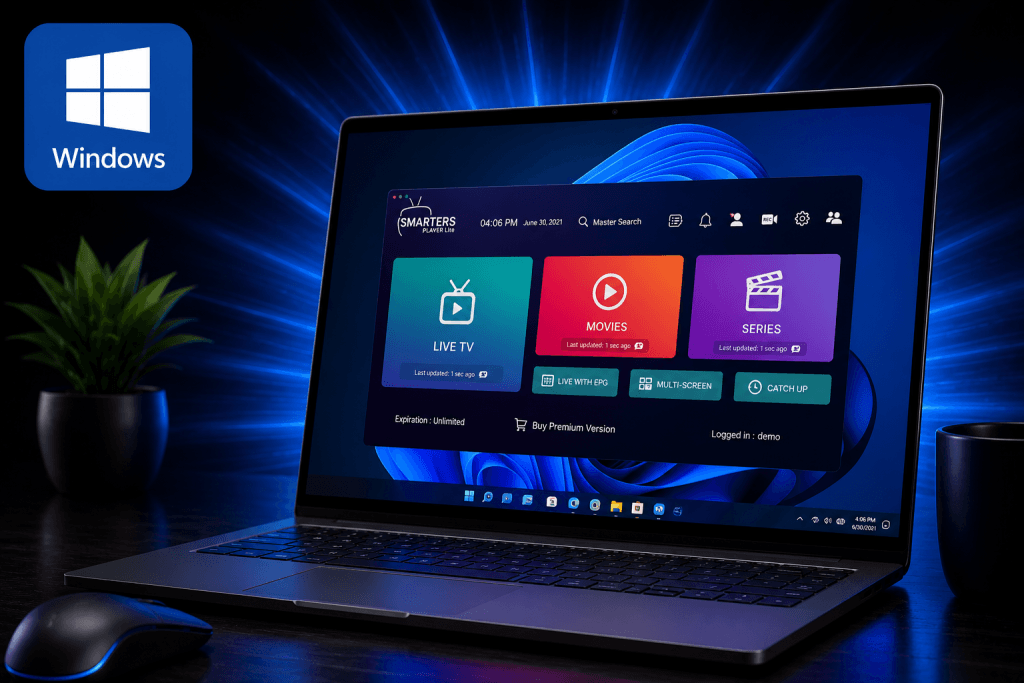
Install IPTV Smarters Pro on your Windows computer and start streaming Logan Vision in just a few easy steps.
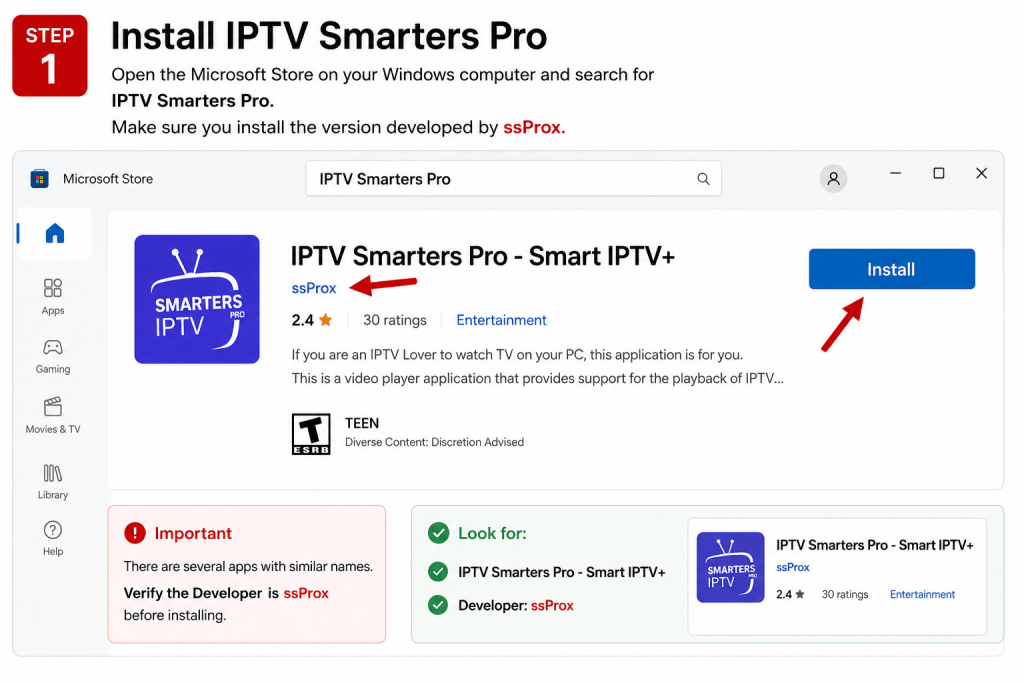
Open the Microsoft Store on your Windows computer and search for IPTV Smarters Pro.
Important: Make sure you install the version developed by ssProx.
⚠️ Important
There are several IPTV Smarters apps available.
Install only:
✅ IPTV Smarters Pro – Smart IPTV+
✅ Developer: ssProx
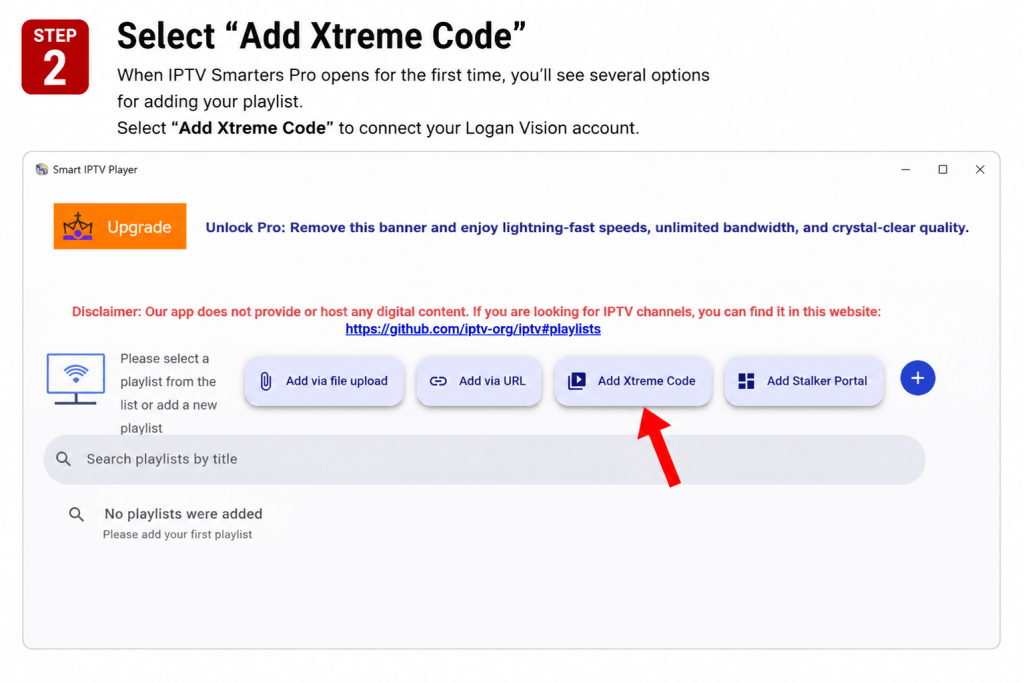
When IPTV Smarters Pro opens for the first time, you’ll see several options for adding your playlist.
Select Add Xtreme Code to connect your Logan Vision account.
💡 Recommended
Logan Vision recommends using Add Xtreme Code because it’s the fastest and easiest way to set up your service.
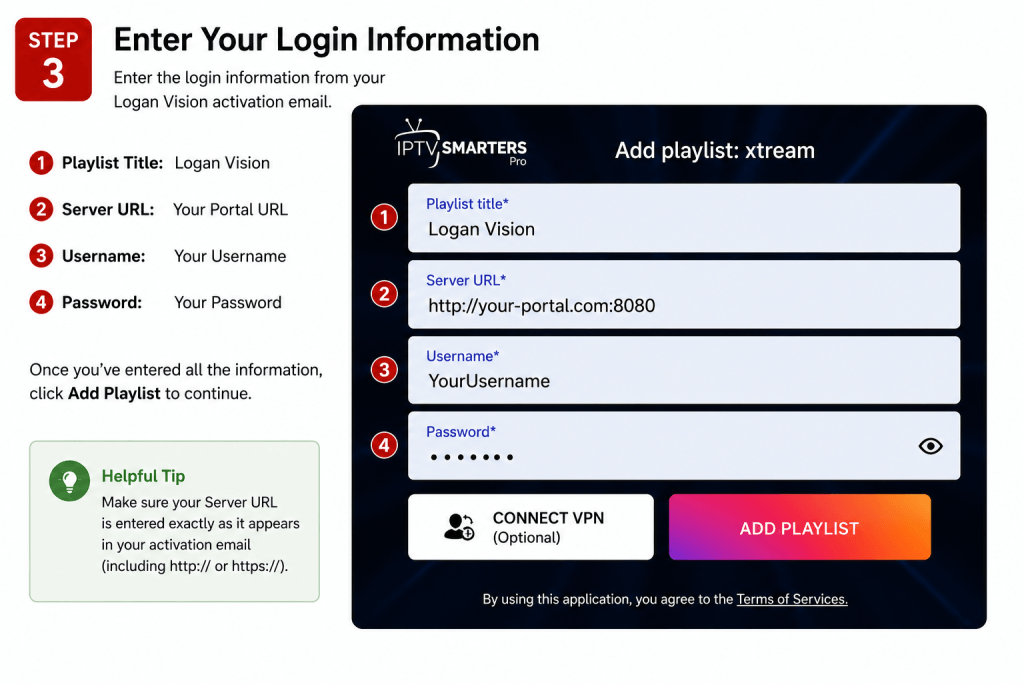
Enter the login information from your Logan Vision Activation Email.
Fill in each field exactly as shown below.
Logan Vision
Enter the Portal URL provided in your activation email.
Enter your Username exactly as provided.
Enter your Password exactly as provided.
Once you’ve entered all of your information, click Add Playlist to continue.
Make sure your Server URL is entered exactly as it appears in your activation email, including http:// or https:// if provided.
Also double-check your Username and Password, as they are case-sensitive.
If you receive a login error:
If you still need assistance, visit the Logan Vision Support Center for additional help.
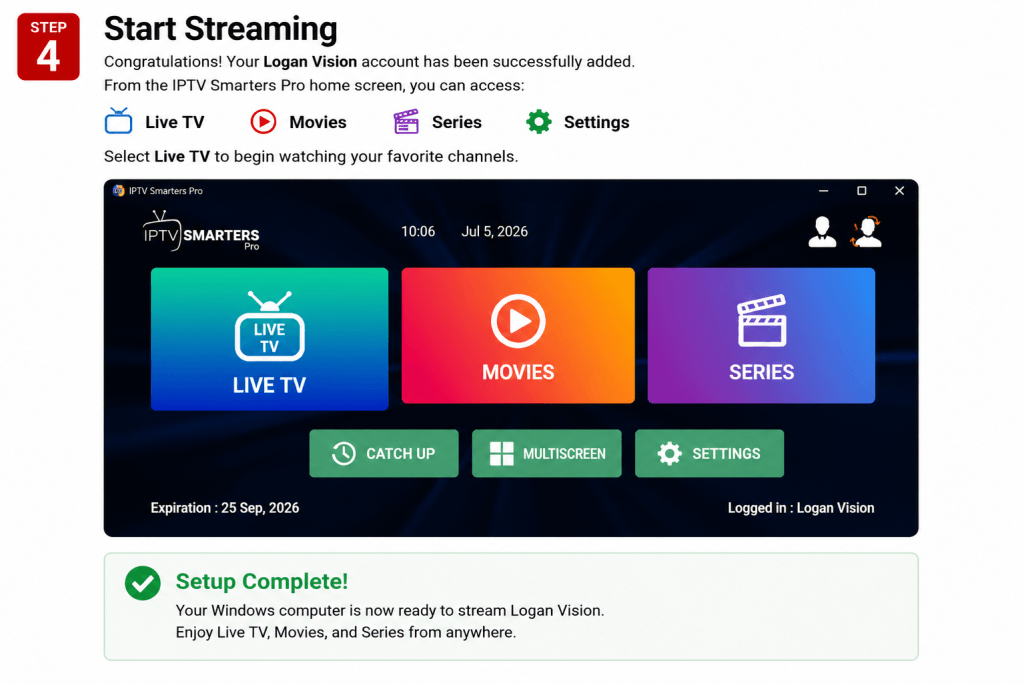
Congratulations! Your Logan Vision account has been successfully added.
From the IPTV Smarters Pro home screen, you can access:
📺 Live TV
🎬 Movies
📺 Series
⚙️ Settings
✅ Setup Complete!
Your Windows computer is now ready to stream Logan Vision.
Enjoy Live TV, Movies, and Series from anywhere.