
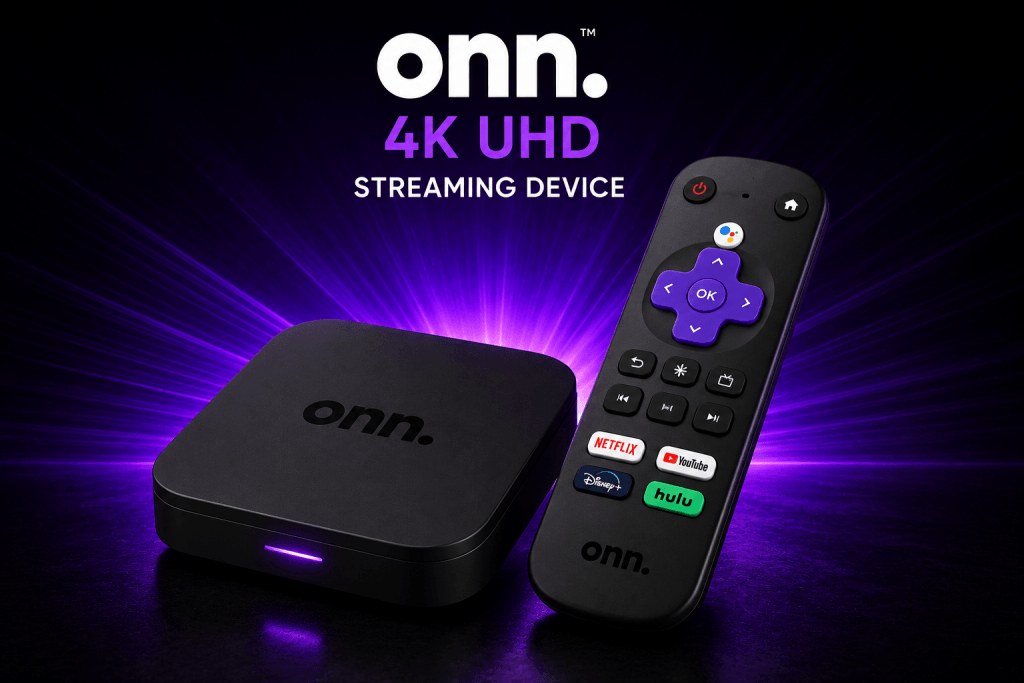
ONN Streaming Device Setup for Logan Vision
ONN Streaming Device Setup is quick and easy with Logan Vision. Follow this step-by-step guide to install the app, sign in with your account, and start streaming live TV, movies, and TV shows in just a few minutes.
ONN Streaming Device Setup: What You'll Learn
Follow these simple steps to set up your ONN Streaming Device and start enjoying live TV, movies, and series in just a few minutes.
- Connect ONN device
- Install Downloader
- Download Generic Smarters
- Log in
- Start streaming
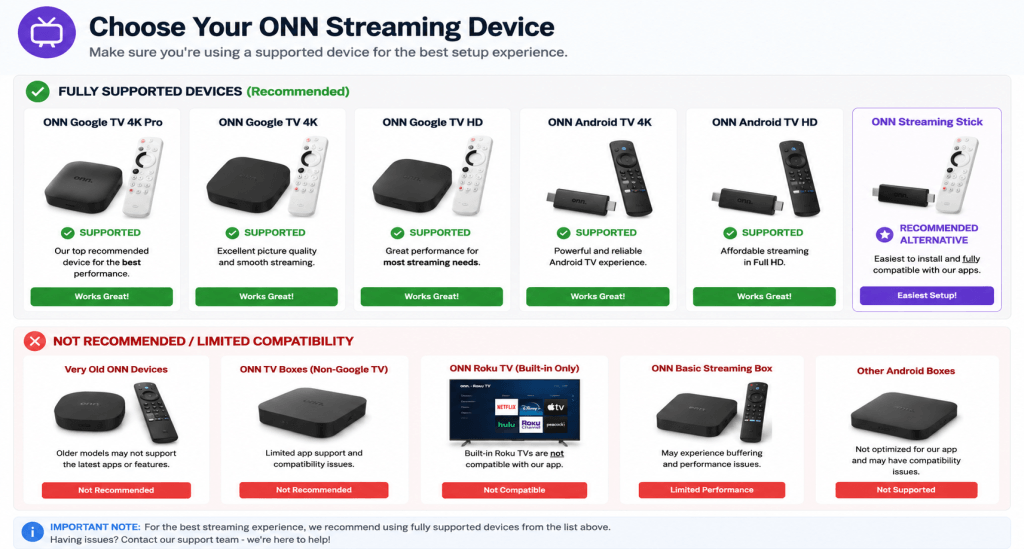
🔥 Updated Device List
Select your ONN Streaming Device model before continuing.
🎥 Watch the Setup Video
Follow along with our upcoming ONN setup video, which will walk you through the entire installation
Step 1 — Connect Your ONN Streaming Device
Connect your ONN Streaming Device to your TV using the HDMI port and power adapter included with your device.
When powered on, follow the on-screen instructions to connect to Wi-Fi and sign in with your Google account.
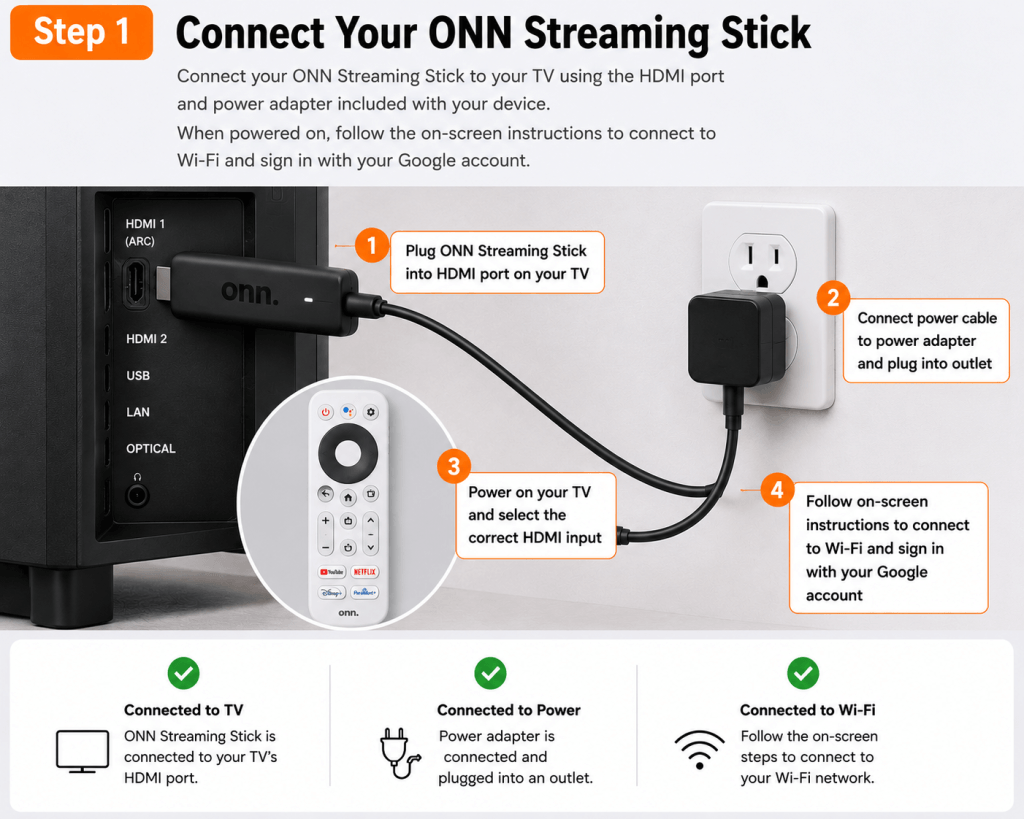
Verify
- Connected to TV
- Connected to Power
- Connected to Wi-Fi
Step 2 — Open the Apps Tab
From the home screen, navigate to the Apps section.
Select Search and prepare to install the Downloader app.
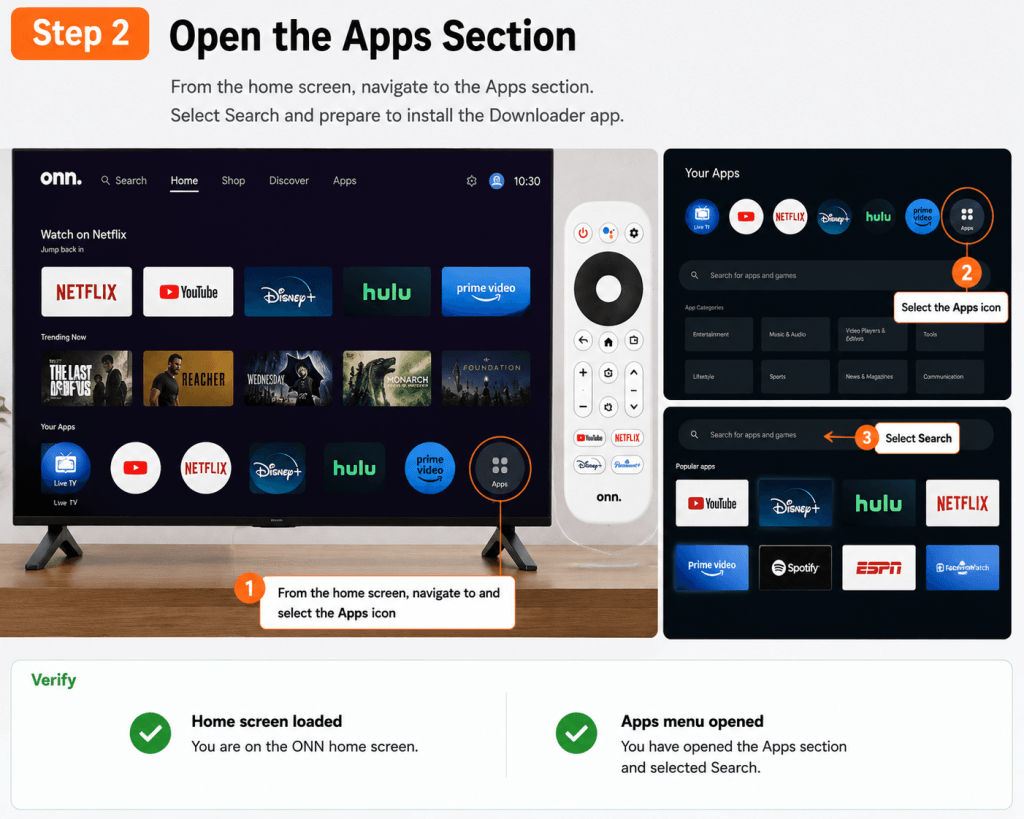
- Home screen loaded
- Apps menu opened
Step 3 — Install Downloader
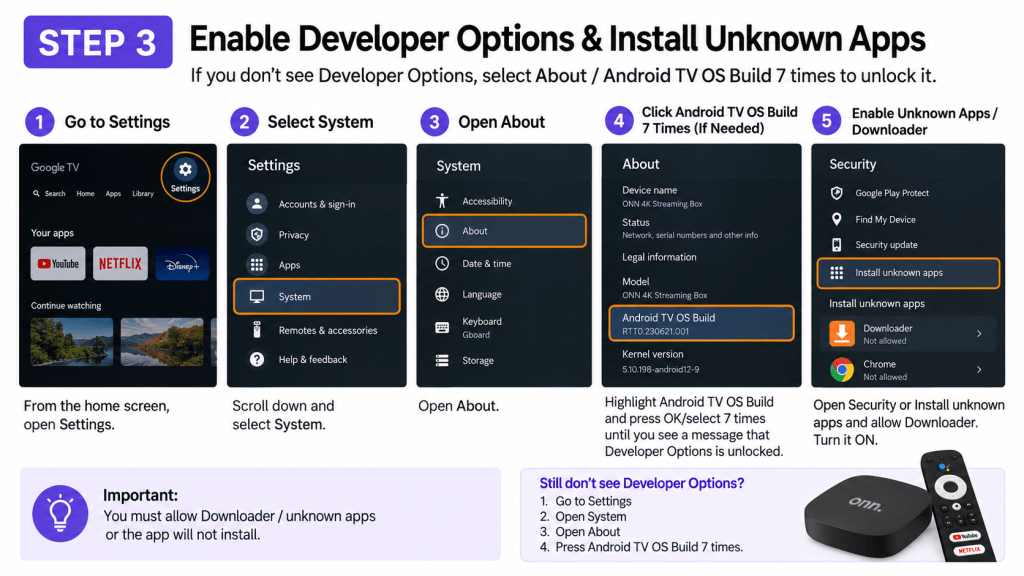
Panel 1
Open Search
From the ONN home screen:
- Select Apps
- Choose Search
- Select the search box
Panel 2
Type “Downloader”
Using the on-screen keyboard:
Type:
Downloader
The orange Downloader app should appear in the suggestions.
(Show the keyboard and search suggestions.)
Panel 3
Select the Downloader App
Look for the app with:
⬇️ Orange icon
Downloader
by AFTVnews
(Highlight the correct app.)
Panel 4
Install Downloader
Select:
Install
Wait for the app to finish downloading.
(Show the Install button.)
✅ Downloader installed
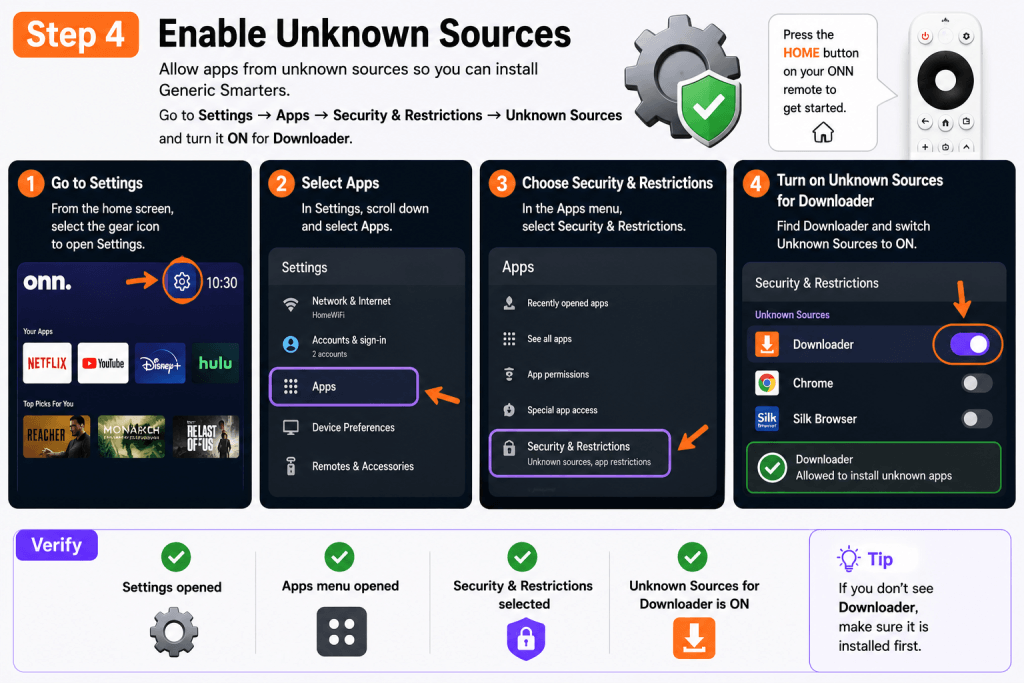
Step 4 — Enable Unknown Sources
Open:
Settings
- Apps
- Security & Restrictions
- Unknown Sources
Enable Downloader.
This allows Android applications to be installed.
Launch Downloader app” at the end. Move that to Step 5.
✅ Downloader permission enabled
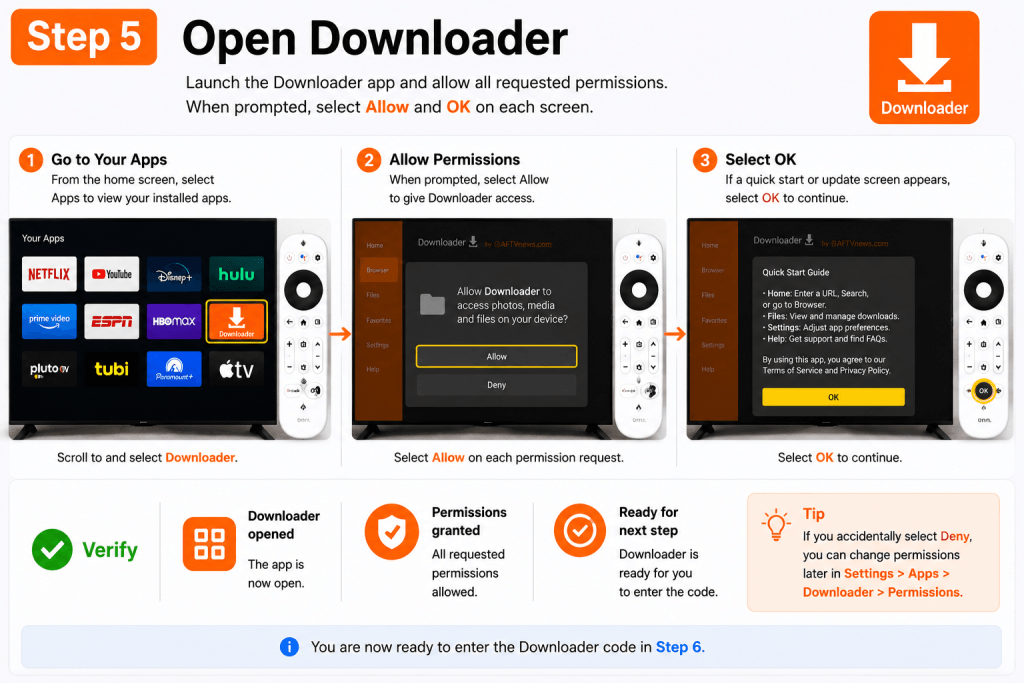
Step 5 — Launch Downloader
Open Downloader and allow all permissions.
When prompted, select:
Allow
and
OK
✅ Downloader opened
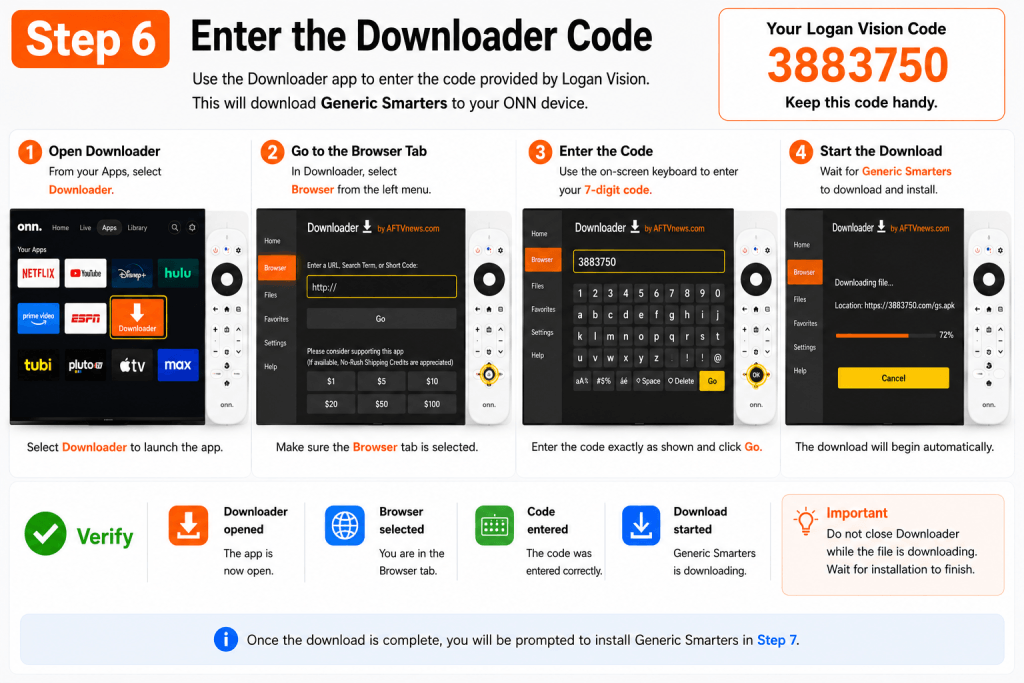
Step 6 — Enter Downloader Code
Enter the following code:
3883750
and select Go.
Generic Smarters will begin downloading.
✅ Download started
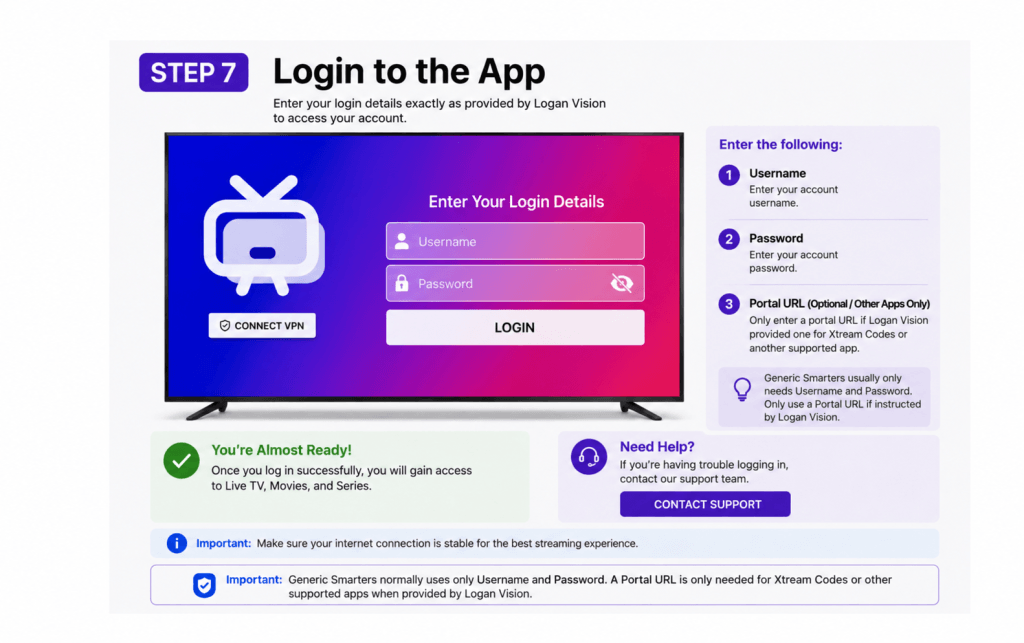
Step 7 — Install & Sign In to Your Streaming App
 Option 1: Generic Smarters
Username
Password
Important: Generic Smarters does not require a Portal URL. Enter only the username and password provided by Logan Vision.
📺 Option 2: TiviMate
Xtream Codes Login (if available)
Username
Password
Server URL: (Logan Vision will provide all required login information.)
OR use M3U Playlist if required
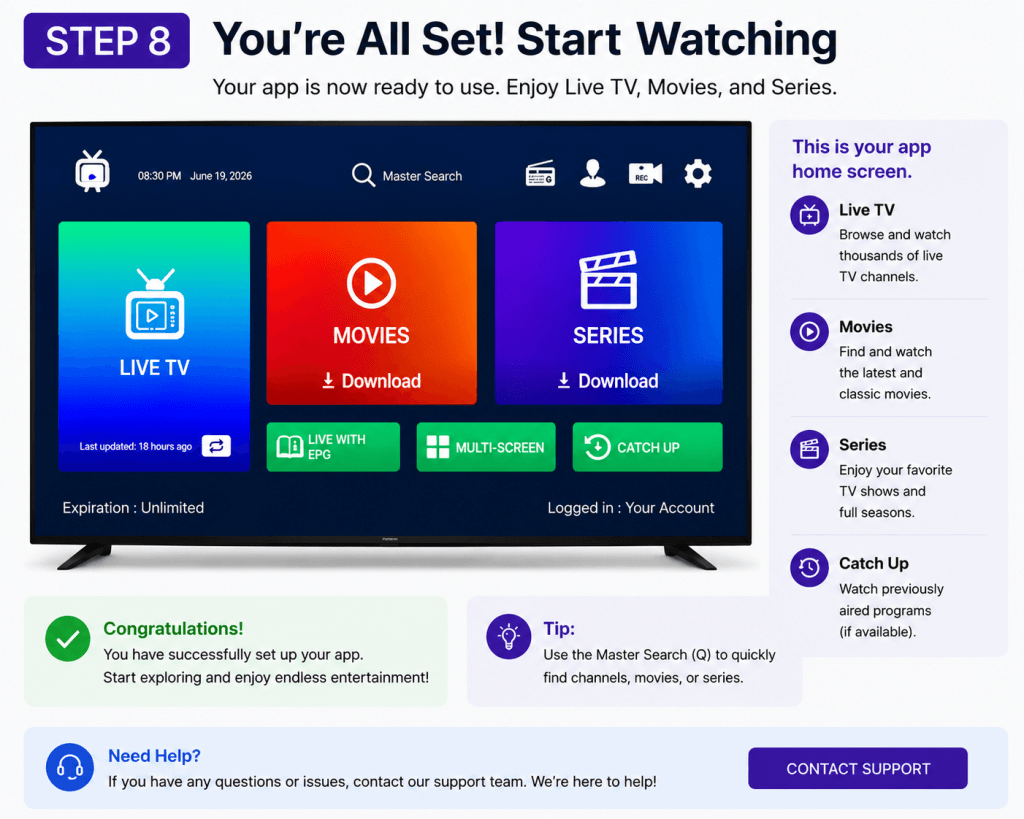
Step 8 - Start Streaming
After logging in, select:
- Live TV
- Movies
- Series
Enjoy your Logan Vision service.
⚠️ Important Note
- Some apps may only ask for Username + Password
- Other apps ask for Username + Password + Portal URL. Logan Vision will provide your login details.
- This is normal — just follow your app screen
Need Additional Help?
ONN Streaming Device Setup Frequently Asked Questions
Most customers complete the ONN Streaming Device setup in 5 to 10 minutes. If this is your first time using the device, it may take a few extra minutes to connect to Wi-Fi, install the required app, and sign in to Logan Vision.
Yes. The Downloader app is required to install the Logan Vision app on your ONN Streaming Device. This guide walks you through each step of downloading and installing the app before you sign in.
Double-check that you entered your username and password exactly as provided in your Logan Vision activation email. If you are using Generic Smarters, a Portal URL is not required.
If you’re still seeing “Invalid Details,” visit the Login & App Access Center for step-by-step troubleshooting before contacting support.
Make sure your ONN Streaming Device is connected to the internet and that you’ve completed each step in this guide. Restart your device and try the installation again.
If the app still will not install, visit our App Issues guide for additional troubleshooting steps.
App Issues
Yes. You can install Logan Vision on multiple supported ONN Streaming Devices.
Your subscription’s number of connections determines how many devices can stream at the same time. You can use the same Logan Vision login credentials on each supported device.
Additional Device Support
For help with your ONN Streaming Device, including Wi-Fi connection issues, remote pairing, software updates, or Google TV settings, visit the official Google TV Help Center. For questions about your Logan Vision account, app installation, or streaming service, please contact Logan Vision Support.
🔗 Google TV Help Center
Need More Help?
If you’re having trouble after setup, these step-by-step guides can help you quickly get back to streaming.
Ready to Start Streaming?
Experience Logan Vision on your ONN Streaming Device with live TV, movies, and TV shows. Start your risk-free trial today or explore our streaming plans.