PREMIUM STREAMING. MADE SIMPLE.
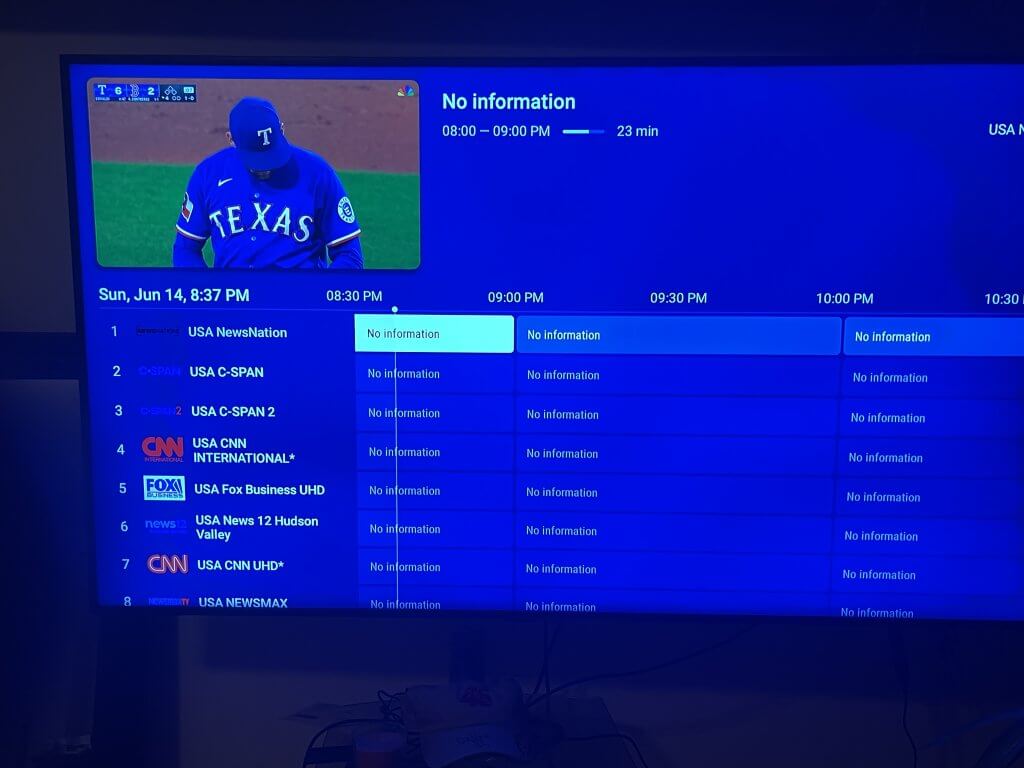
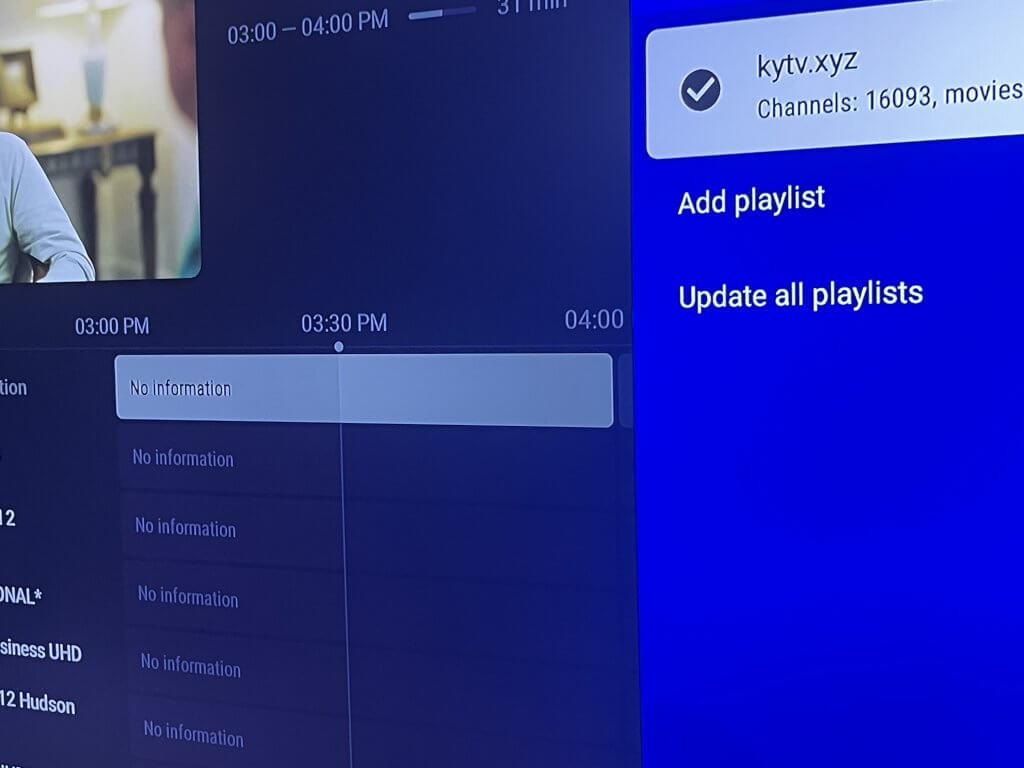
If your TV Guide (EPG) is showing “No Information” in TiviMate, follow the steps below to refresh your playlist and download fresh guide data.
If your TV Guide is missing program information in TiviMate, follow these steps to refresh your playlist and reload the guide.
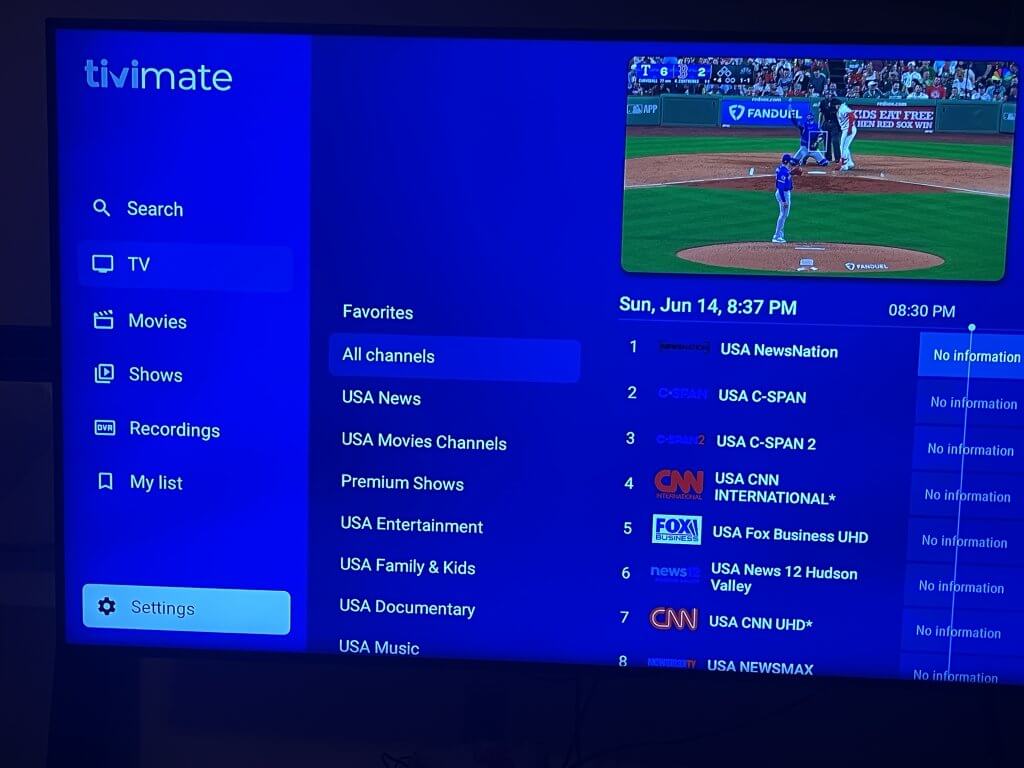
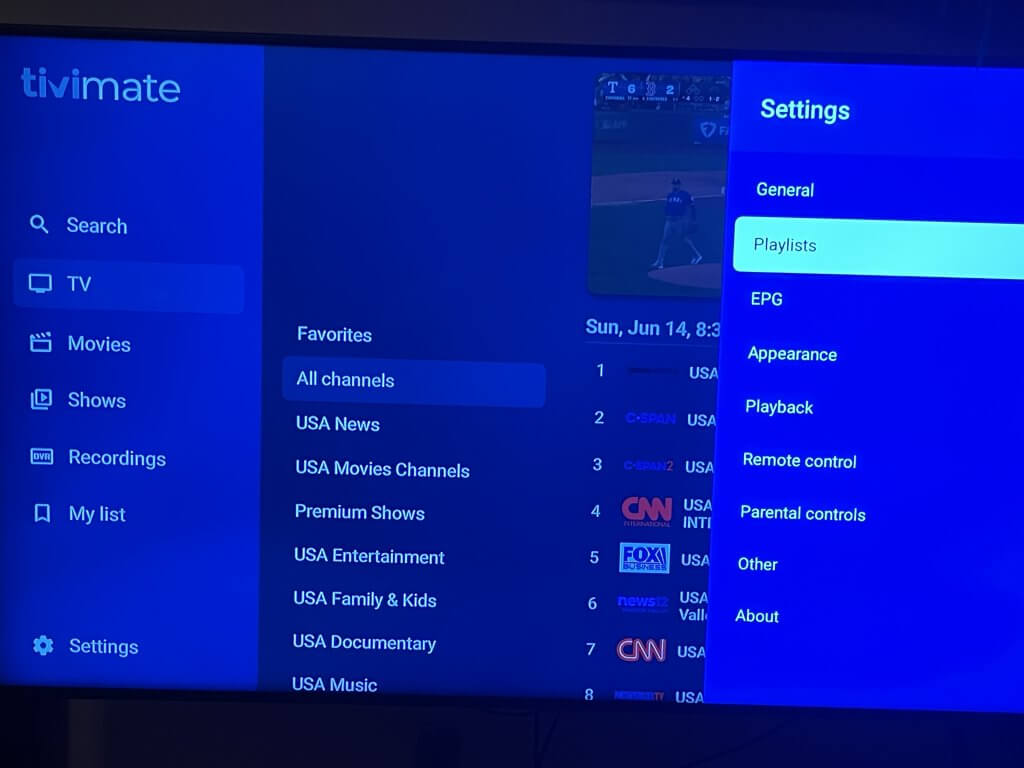
From inside TiviMate, scroll down and select Settings..
In the Settings menu, select Playlists.
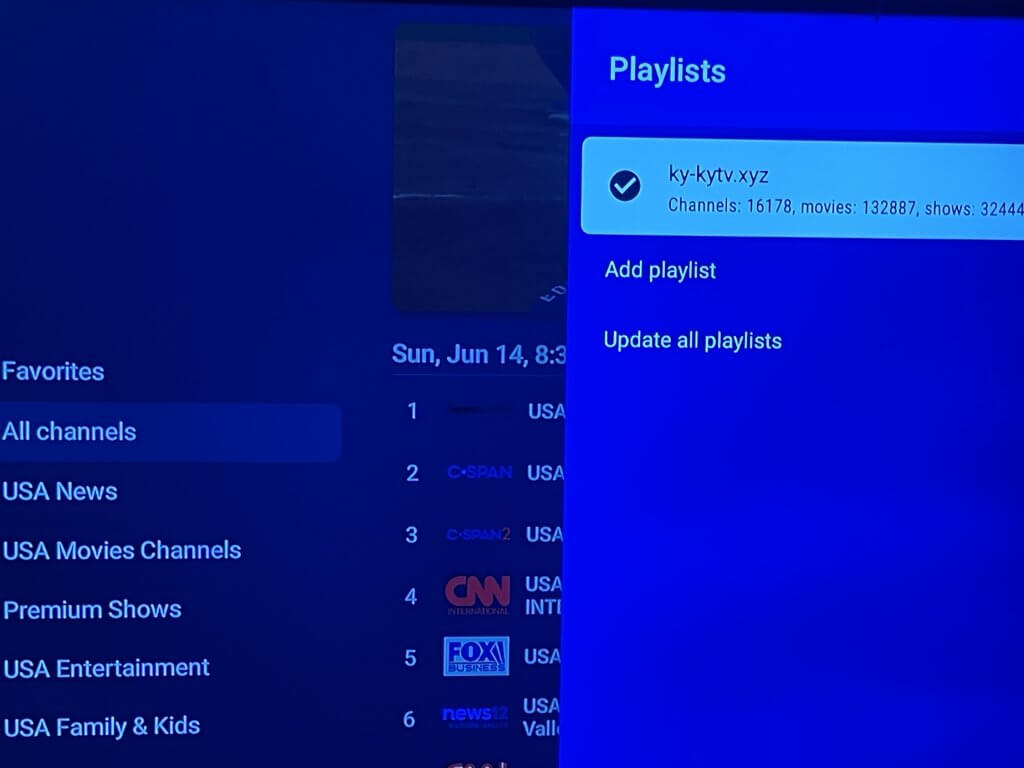
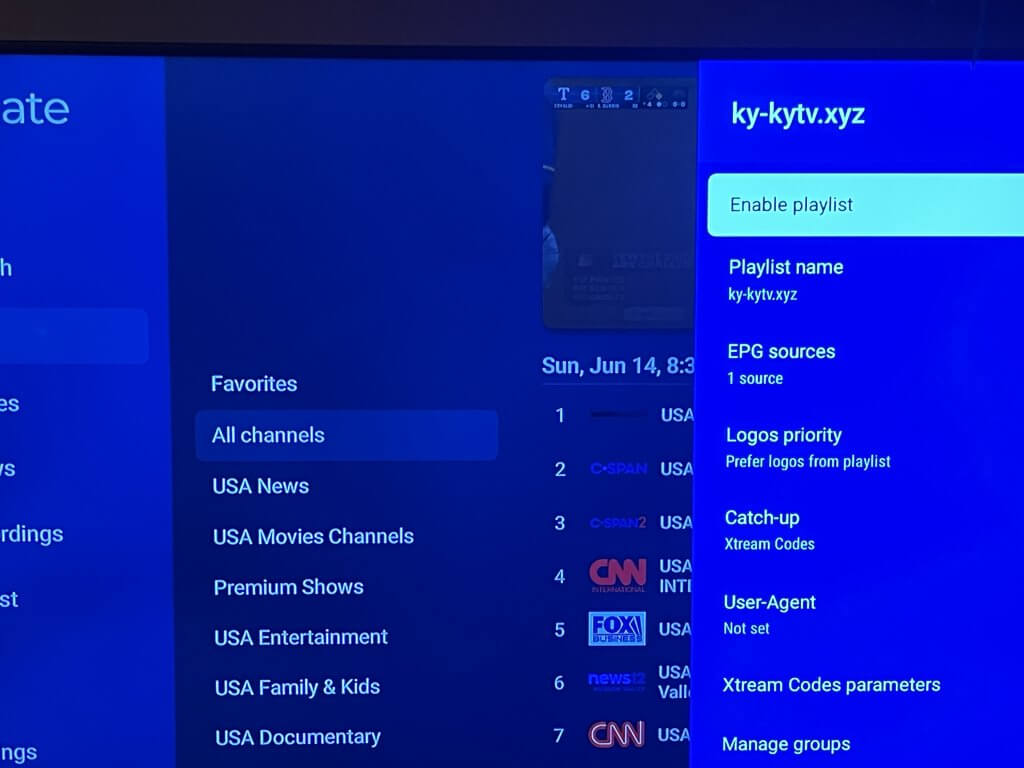
Highlight your Logan Vision playlist and press OK.
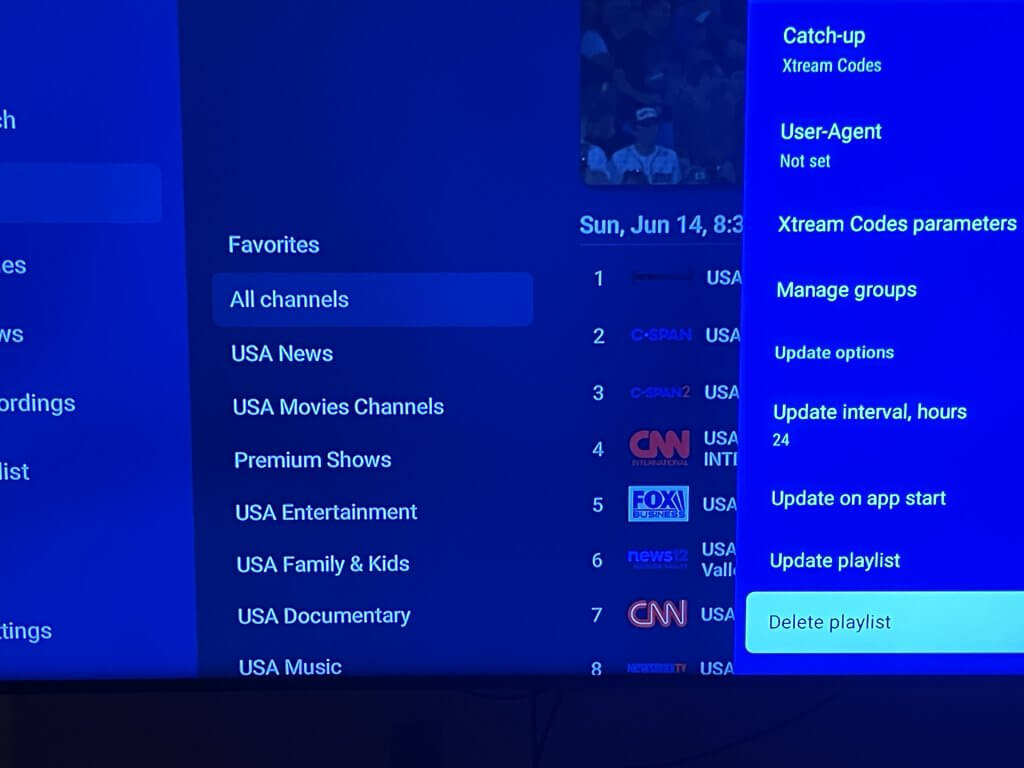
Scroll through the playlist settings until you reach the lower options.
Select Delete Playlist.
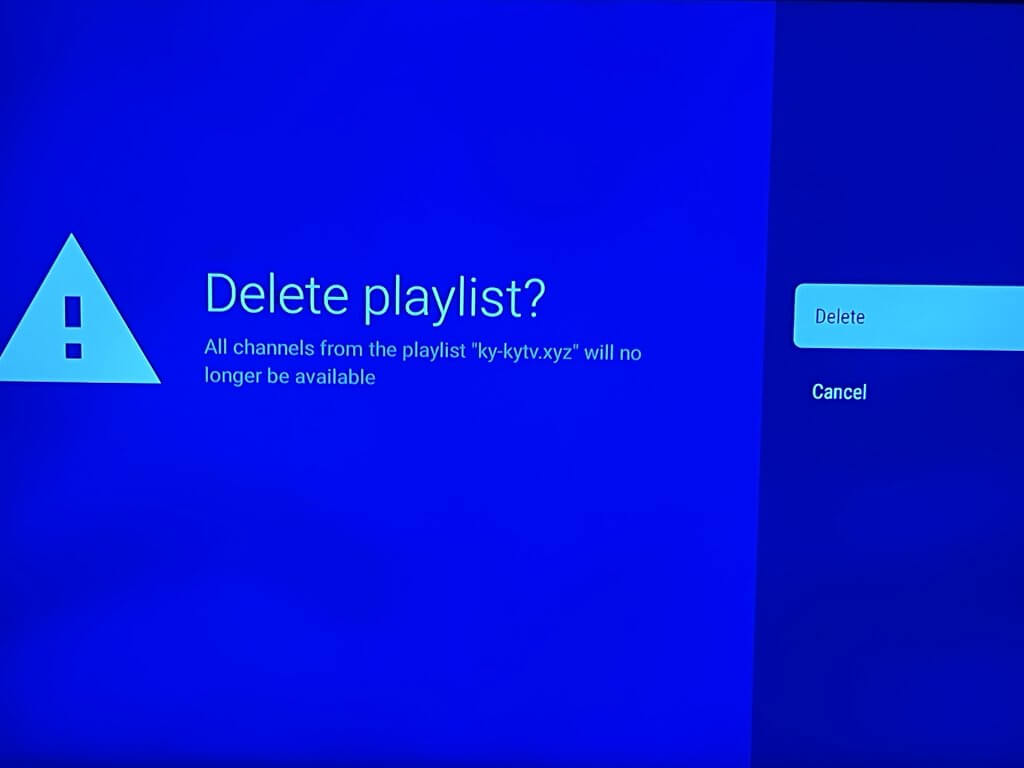
Select Delete to remove the old playlist.
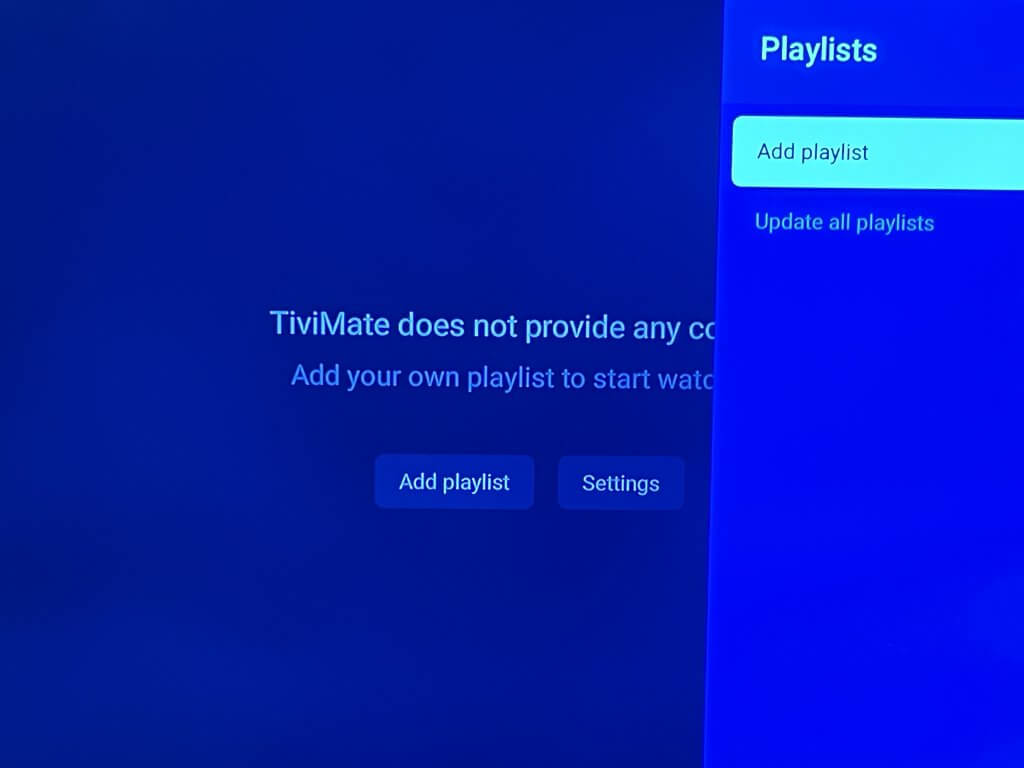
The playlist has now been removed successfully.
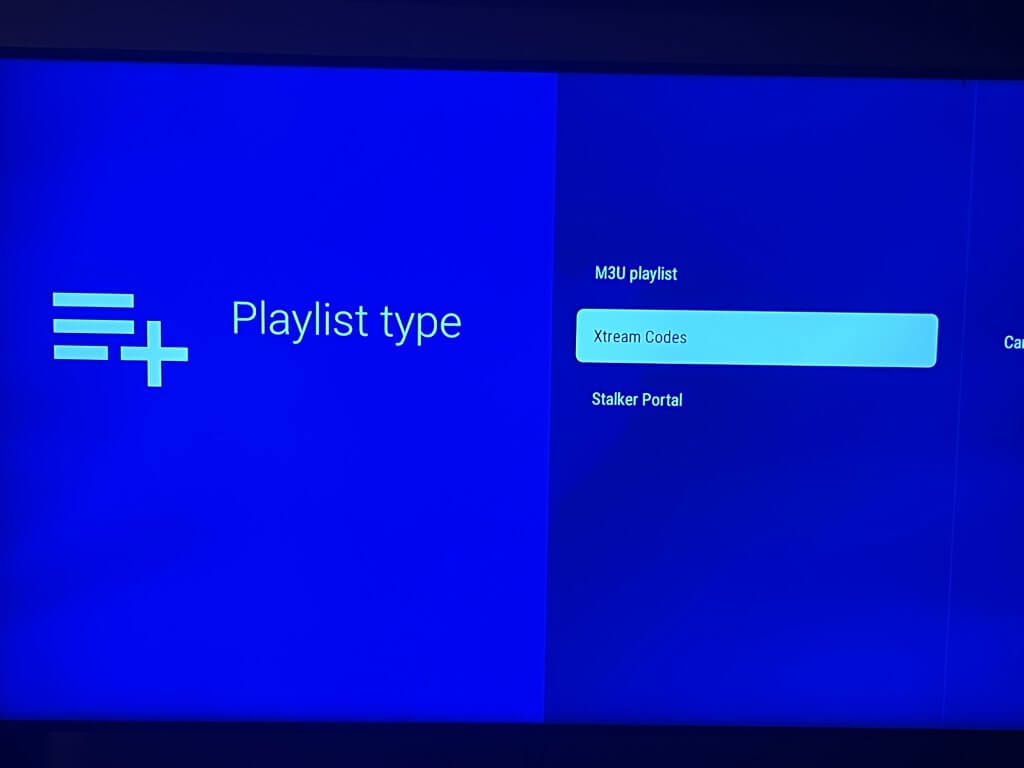
Select Add Playlist.
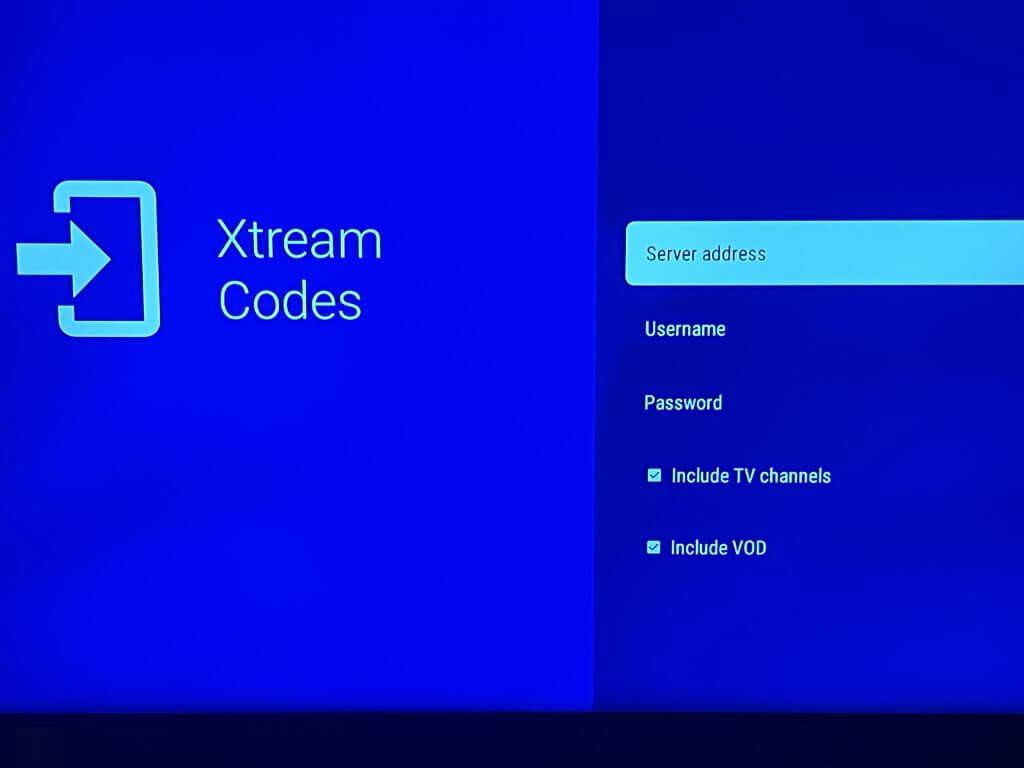
Select Xtream Codes.
Enter the following information exactly as shown below:
Portal URL (Server Address): http://kytv.xyz
Username:Use the username provided in your Logan Vision Welcome Email.
Password:Use the password provided in your Logan Vision Welcome Email.
Leave the following boxes checked:
✓ Include TV Channels
✓ Include VOD
When finished, select Next.
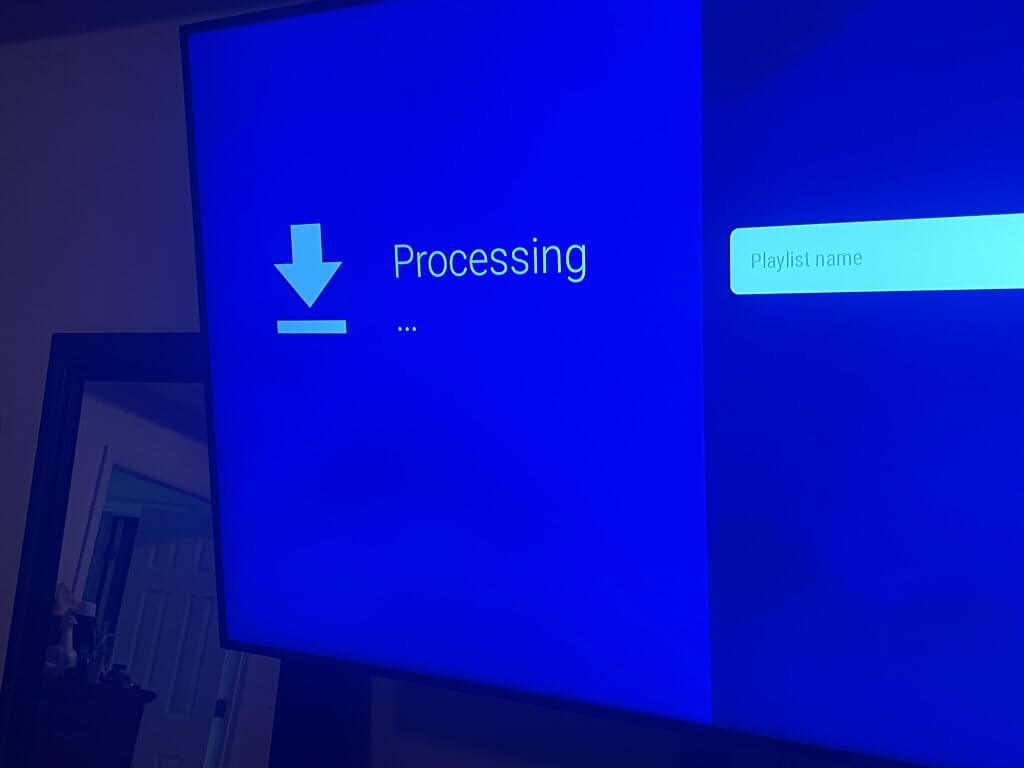
TiviMate will begin downloading your channels, movies, and shows. This process may take a few moments.
Please wait while the playlist is processed.
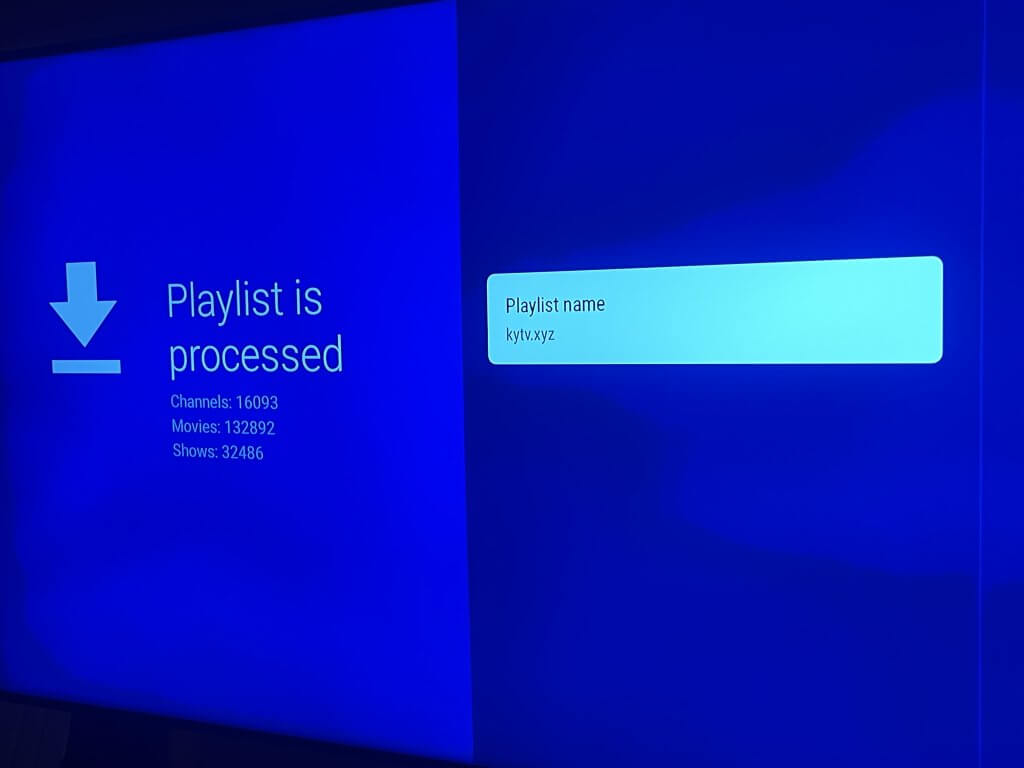
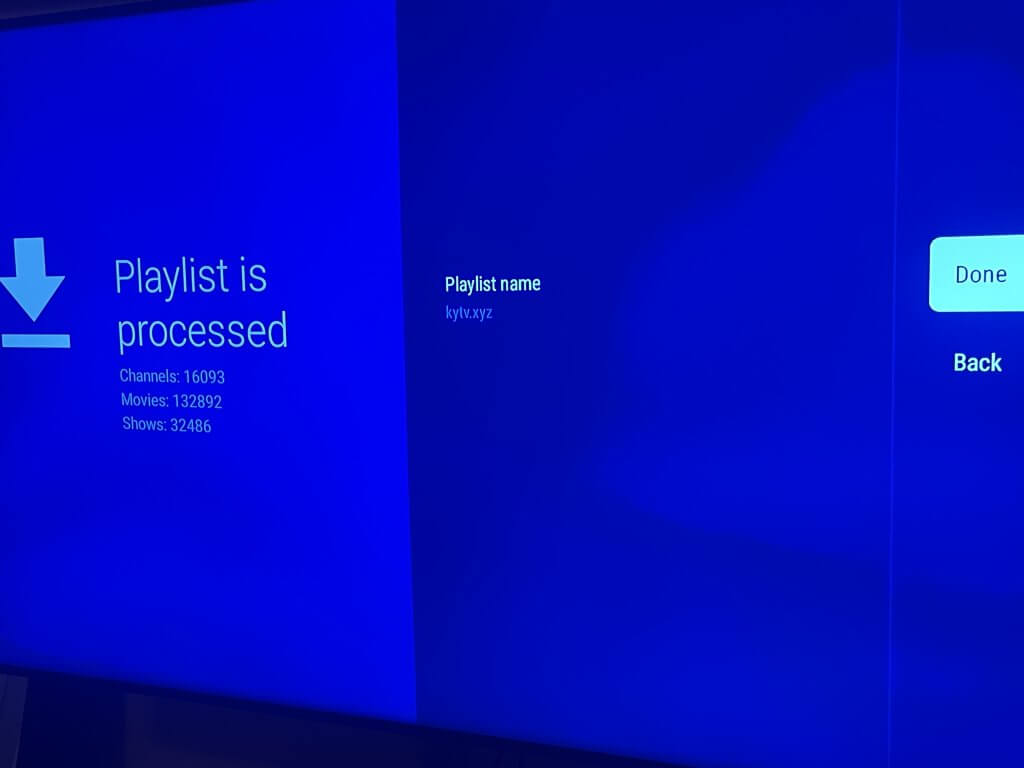
When processing is complete, TiviMate will display the number of channels, movies, and shows that were found.
Select Done to continue.
Your playlist has now been installed successfully.
You will be returned to the TiviMate home screen where you can access:
Live TV
Movies
TV Shows
The TV Guide (EPG) information may take several minutes to load after installation.
Some channels may temporarily display:
No Information
This is normal.
Please allow 5–10 minutes for the guide information to populate.
Your Logan Vision service is now ready to enjoy.
Thank you for choosing Logan Vision.
STREAM SMART. STREAM BETTER.
If you run into any issues, we’re here to help.
For the fastest support, please send:
✓ Your device type✓ A picture or short video of the issue✓ A brief description of the problem
Email: support@logantechnology.com