📺 Fix Missing TV Guide (EPG) in Generic Smarters

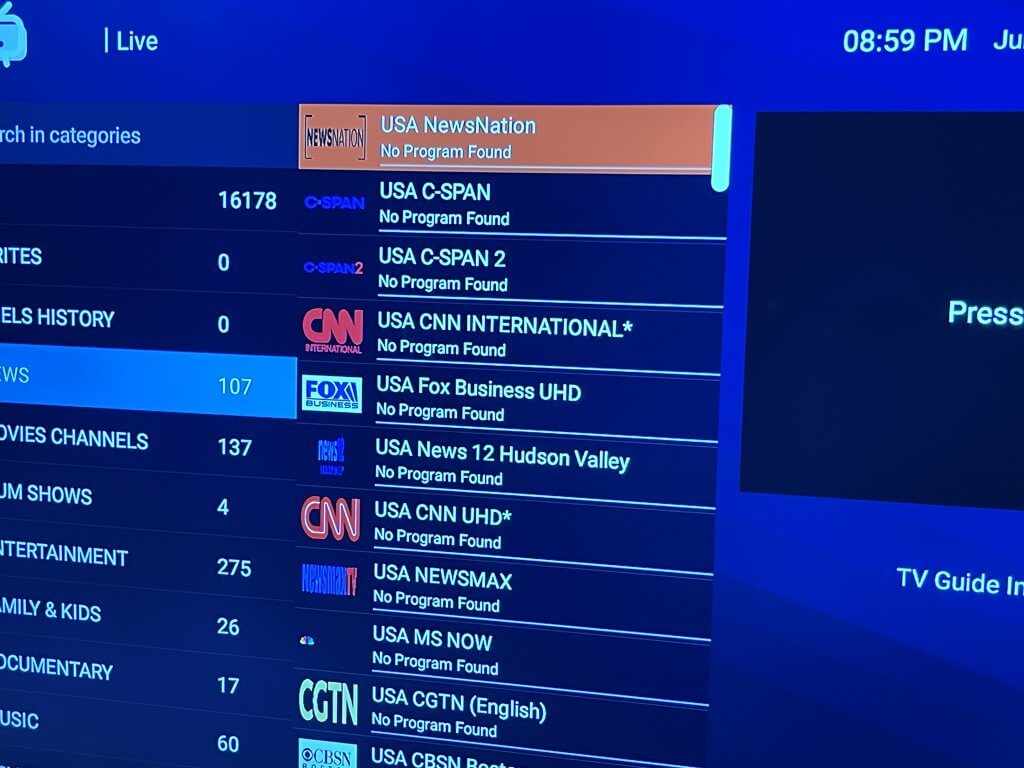
If your channels show “No Program Found,” follow these steps to refresh your TV Guide.

Step 1

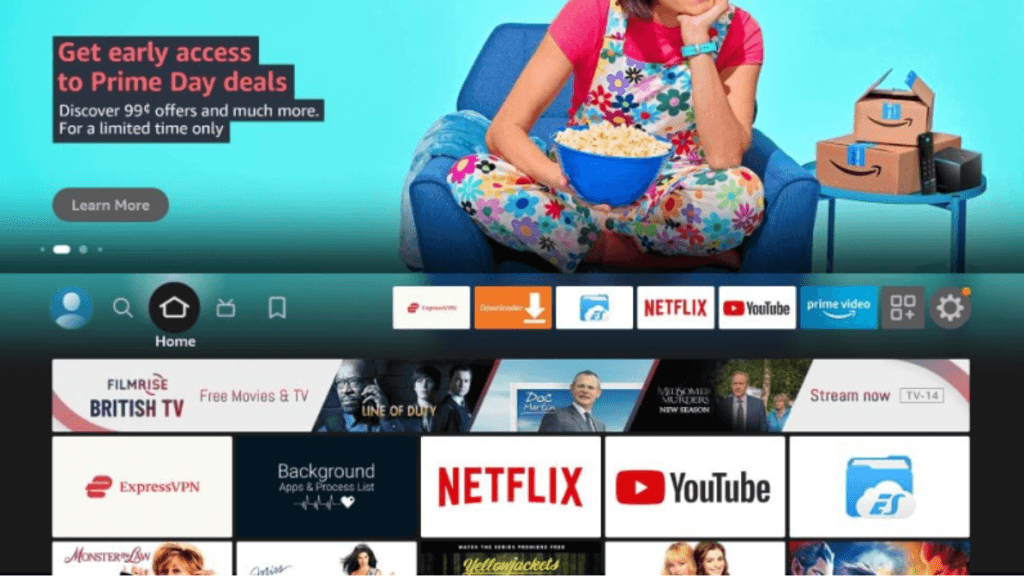
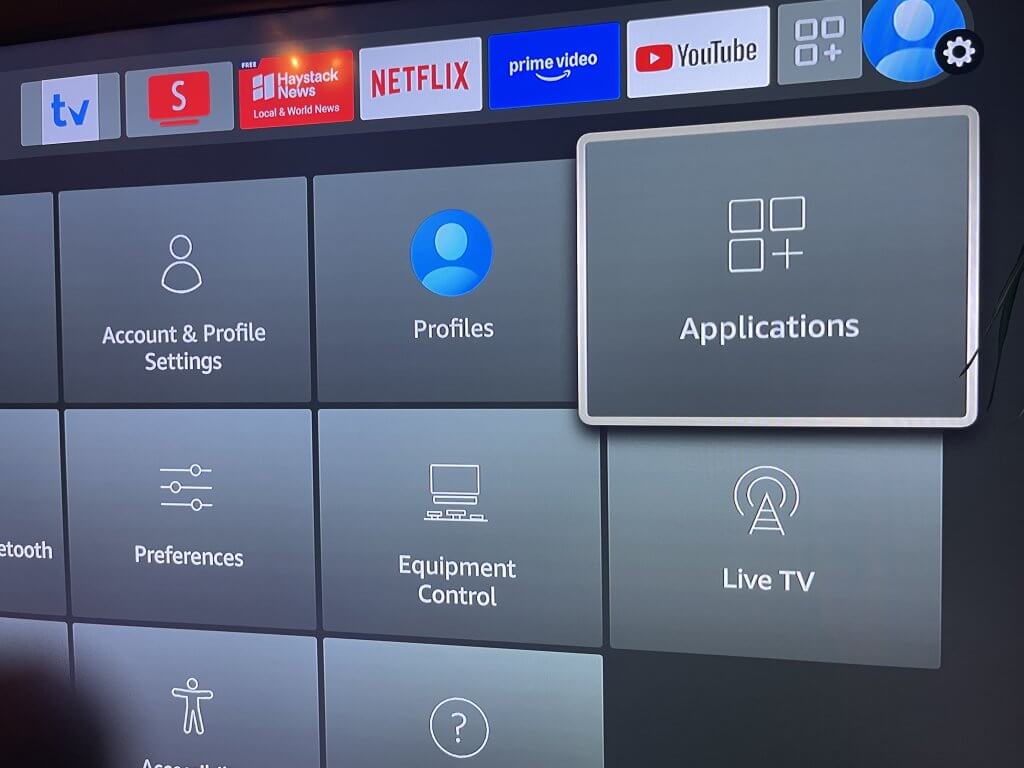
From the Firestick Home Screen, move to the far right and select the Settings ⚙️ icon.

Step 2

From the Settings menu, select Applications.

Step 3

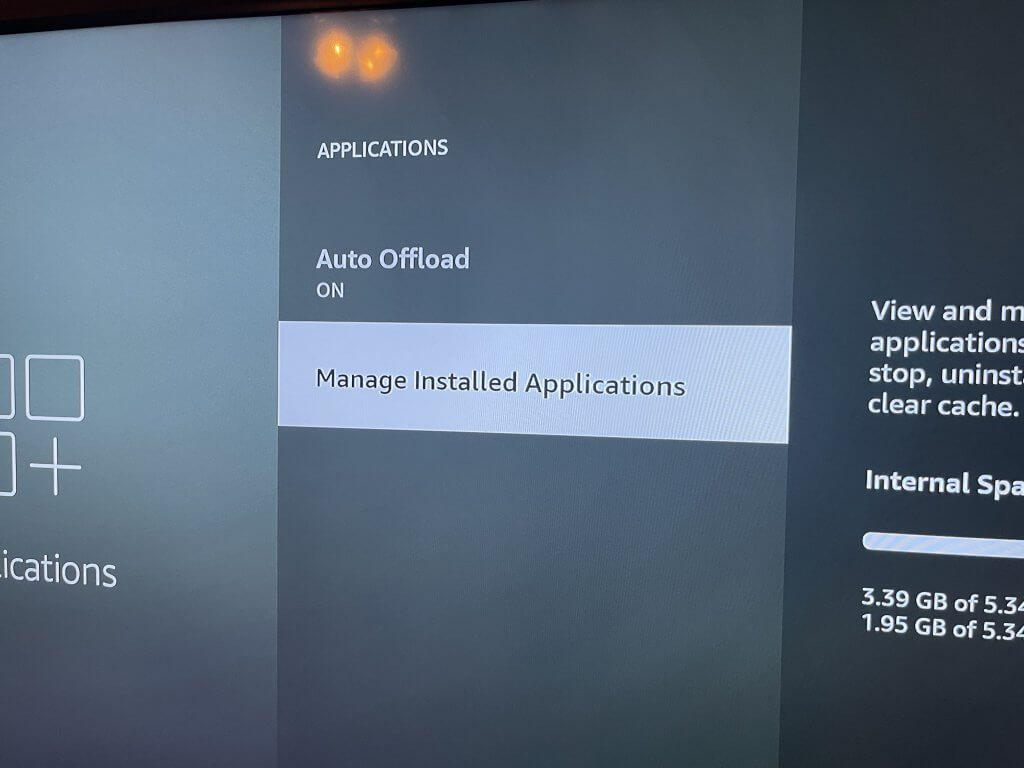
Select Manage Installed Applications.

Step 4

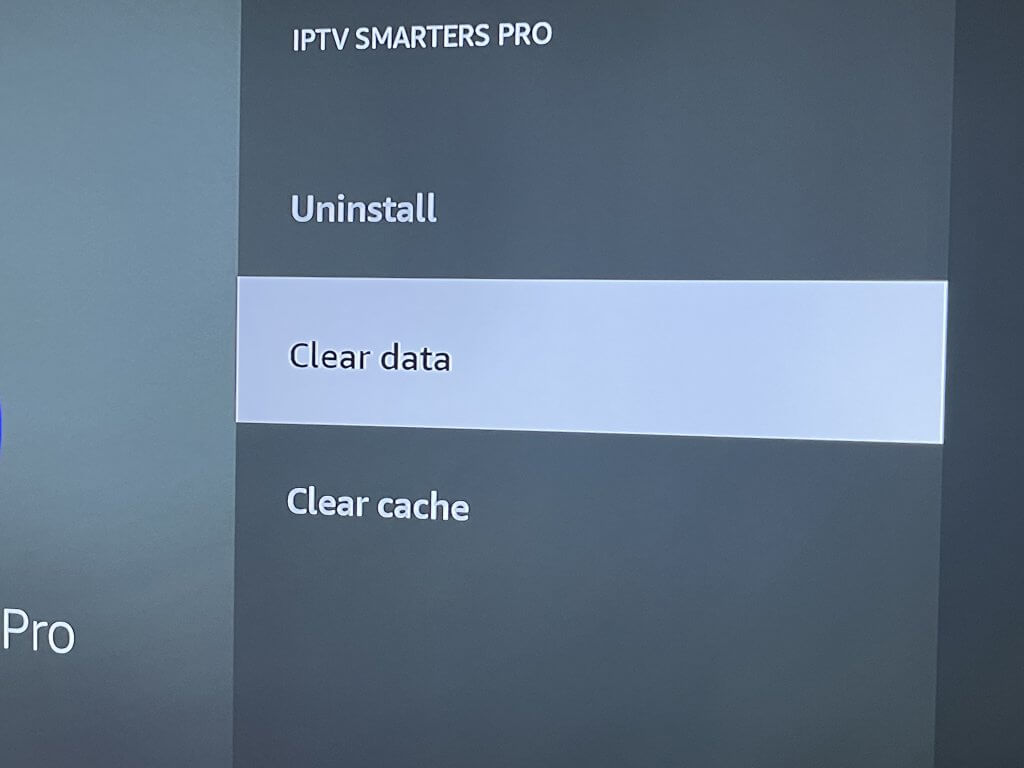
Select Generic App, then choose Clear Data.

Step 5

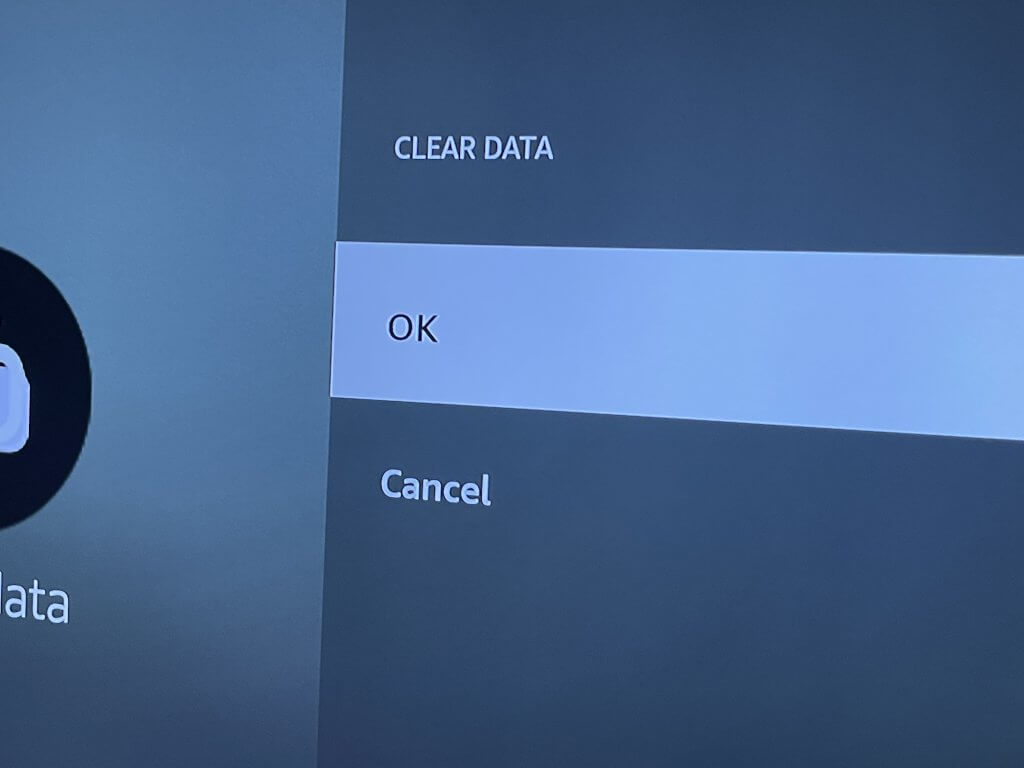
Select OK to confirm.

Step 6

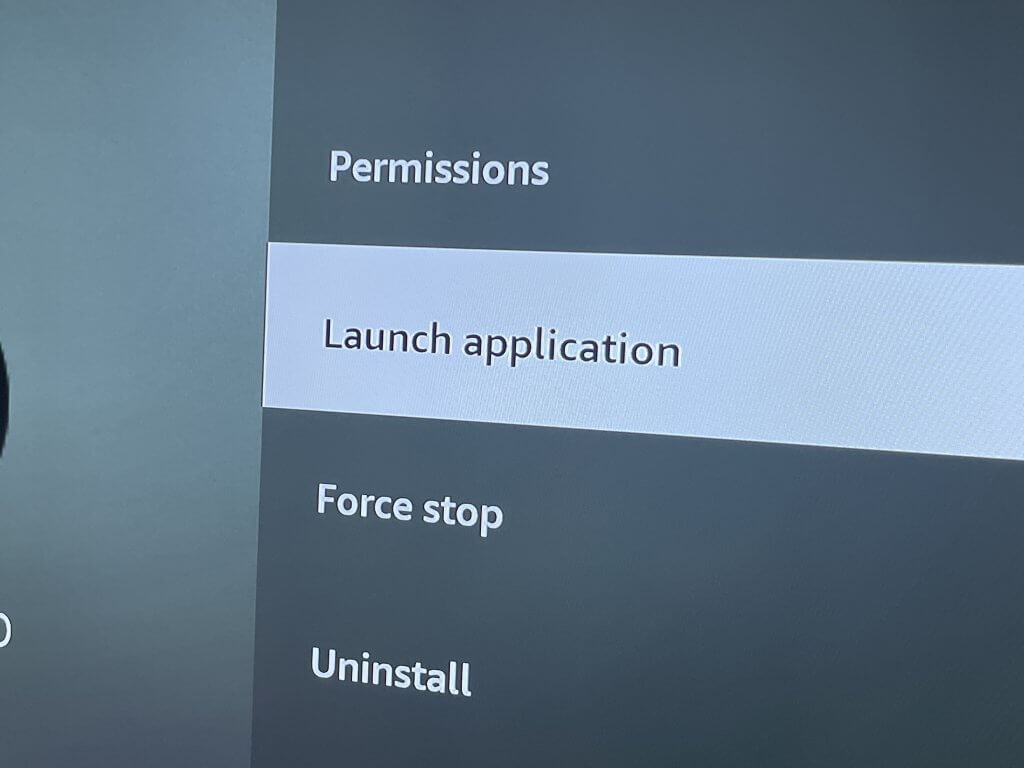
Select Launch Application.

Step 7

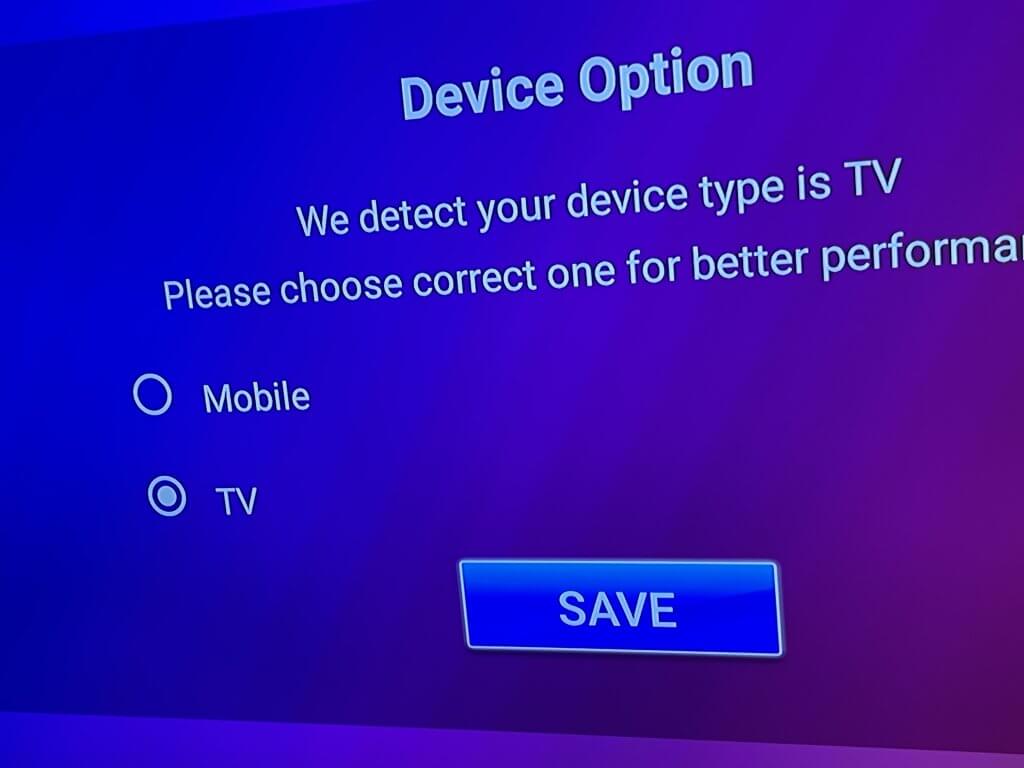
Choose TV and select SAVE.

Step 8

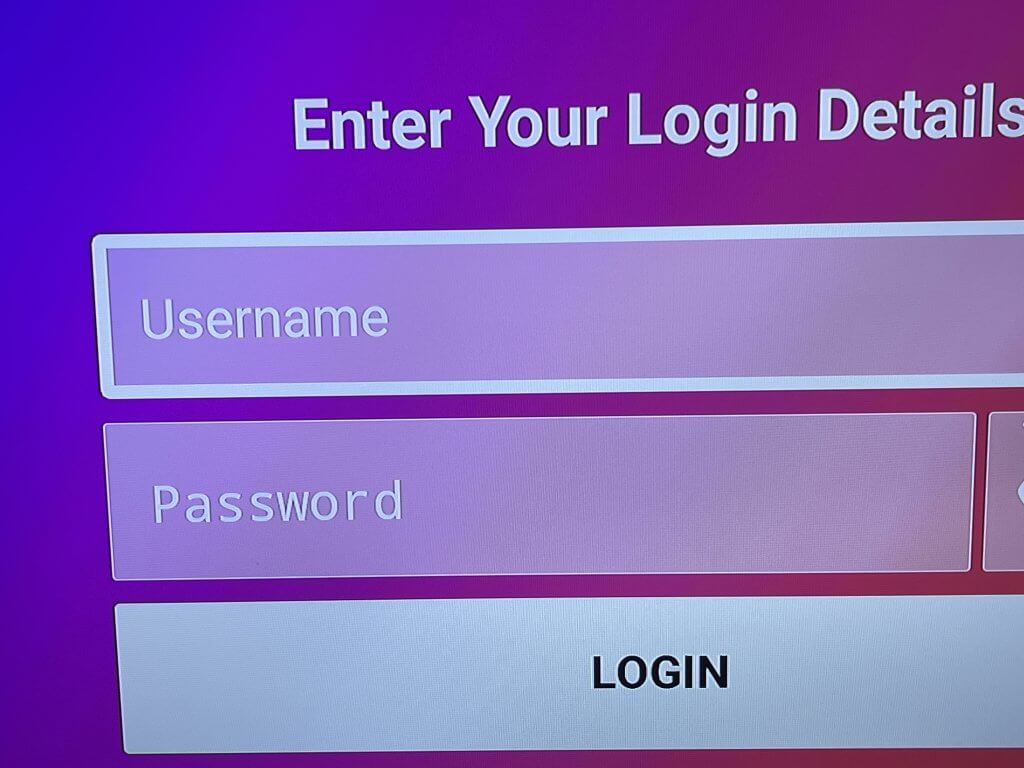
Enter your Logan Vision username and password exactly as provided in your Welcome Email.

🤞 Usernames and passwords are case-sensitive.


Step 9

Enter your Logan Vision username and password exactly as provided in your Welcome Email

Step 10

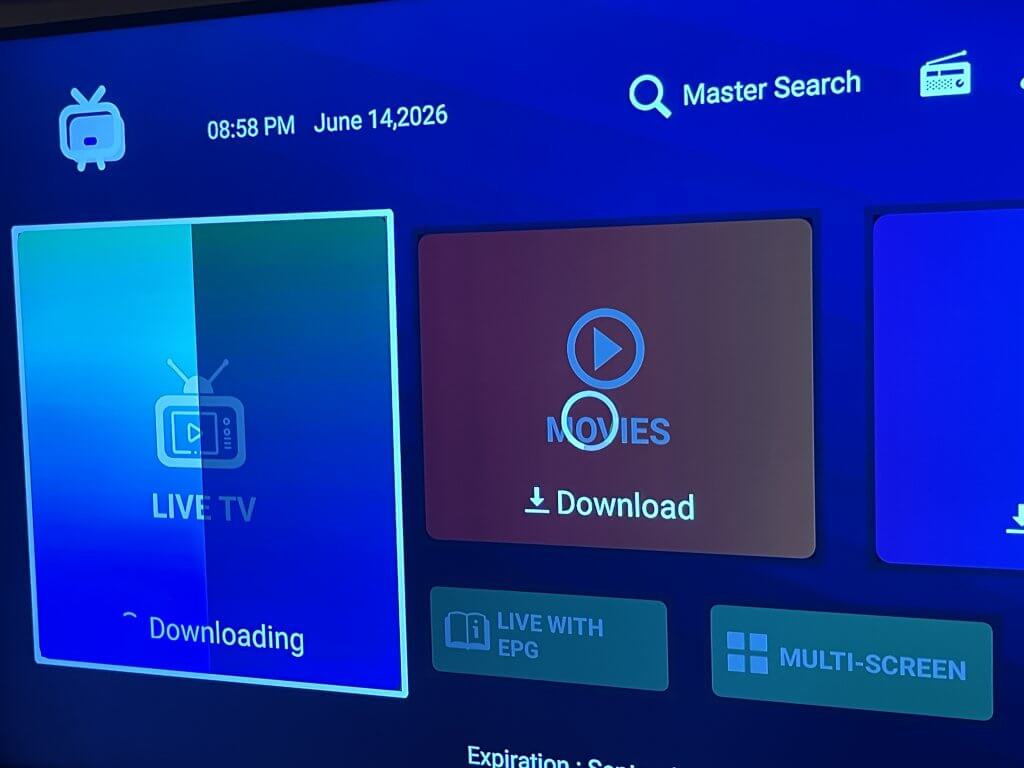
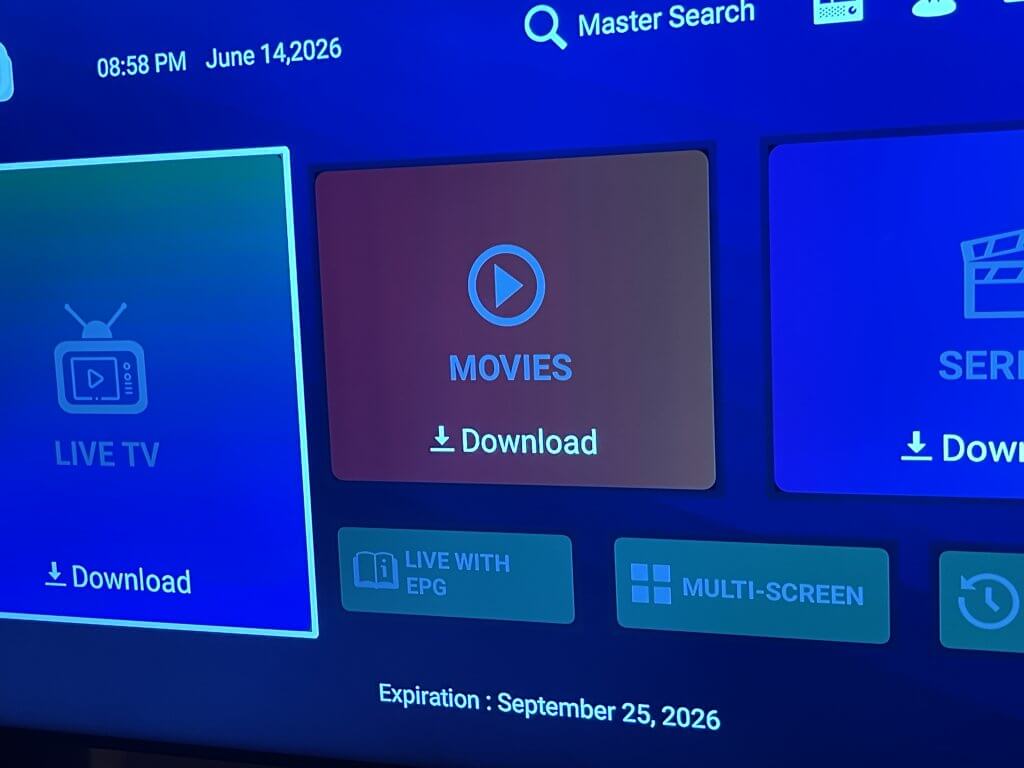
After signing in, select Live TV to begin downloading the TV Guide information.

Step 11

The TV Guide (EPG) information is now loading.  Please allow a few minutes for all channels and program information to appear.

Step 12

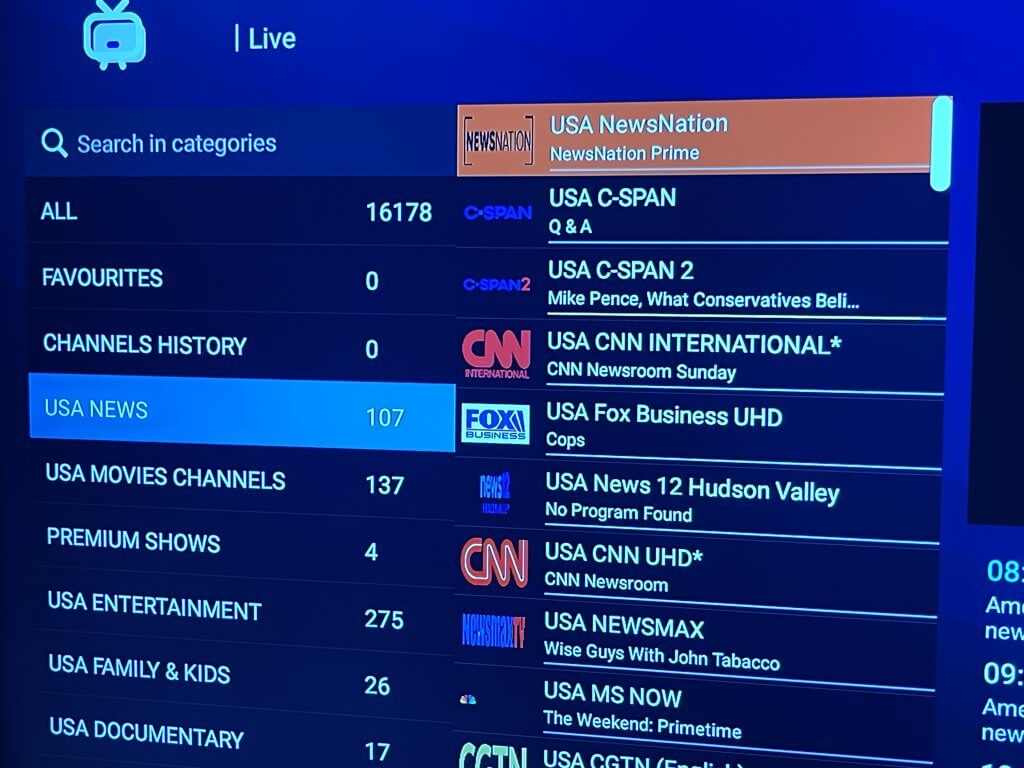
Once the download is complete, your channel guide should display correctly. 

Important Notes

⏱ If the Guide Still Does Not Appear

Wait 2–3 minutes.

If the guide information does not appear immediately, press the Back button on your remote and then reopen Live TV. The guide should refresh and display correctly.

⭐ Favorites Must Be Recreated

Refreshing the TV Guide removes previously saved Favorites.

You will need to add your favorite channels again after the guide refresh is complete.

⚠ Username and Password Are Case-Sensitive

Please enter your login information exactly as provided in your Welcome Email.

Need More Help?

If you still experience problems after following these steps, please contact Logan Vision Support.

🌐 www.loganvision.com/support